Overview
We’ve updated how Stand-In Approvers work to make delegated approvals more accurate, compliant, and easier to manage.
The new logic ensures a “stand-in” only steps in where the original approver was actually eligible, preventing incorrect routing and unnecessary approval notifications.
This helps avoid situations where a “stand-in” was approving invoices the original user was never meant to approve.
Availability
This updated logic is currently in Early Access phase for few early customers. A general rollout will follow once Early Access is validated.
If you would like Early Access enabled for your account, please reach out to your Customer Success Manager or Support team.
How It Works
1. Selecting a Stand-In Approver (New Behavior)
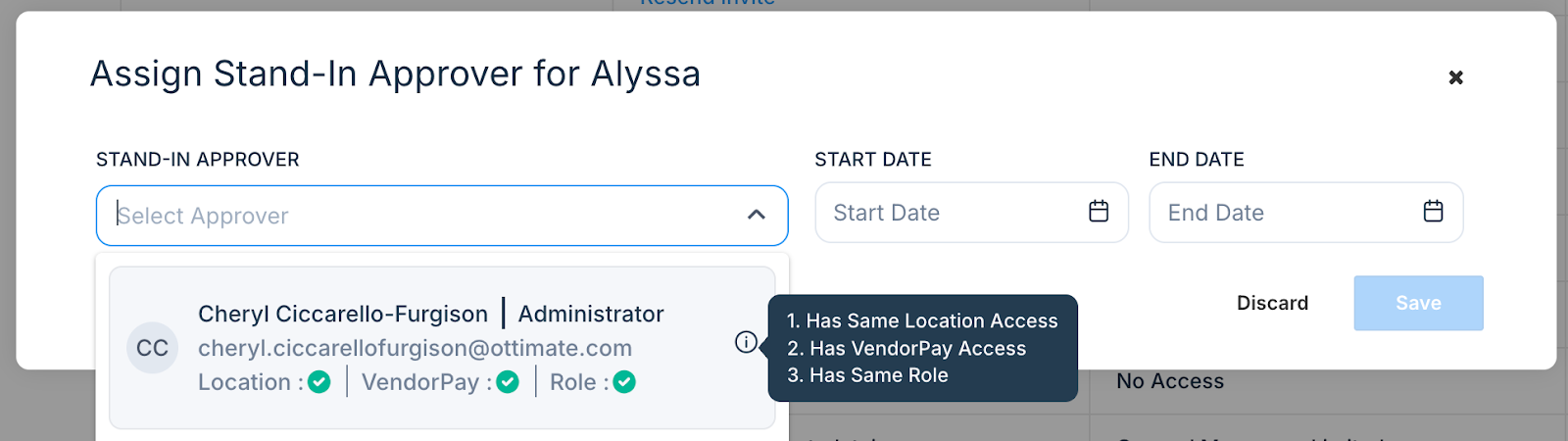
When choosing a stand-in approver, Ottimate now:
Shows all users, but:
Users with no shared locations are greyed out and cannot be selected.
Users with partial matches remain selectable but may require confirmation.
Checks role similarity, location overlap and (when applicable) VendorPay approval access.
Sorts users so the best-matching stand-ins appear at the top.
Explains eligibility via tooltips when hovering over each user.
2. Role Mismatch Confirmation
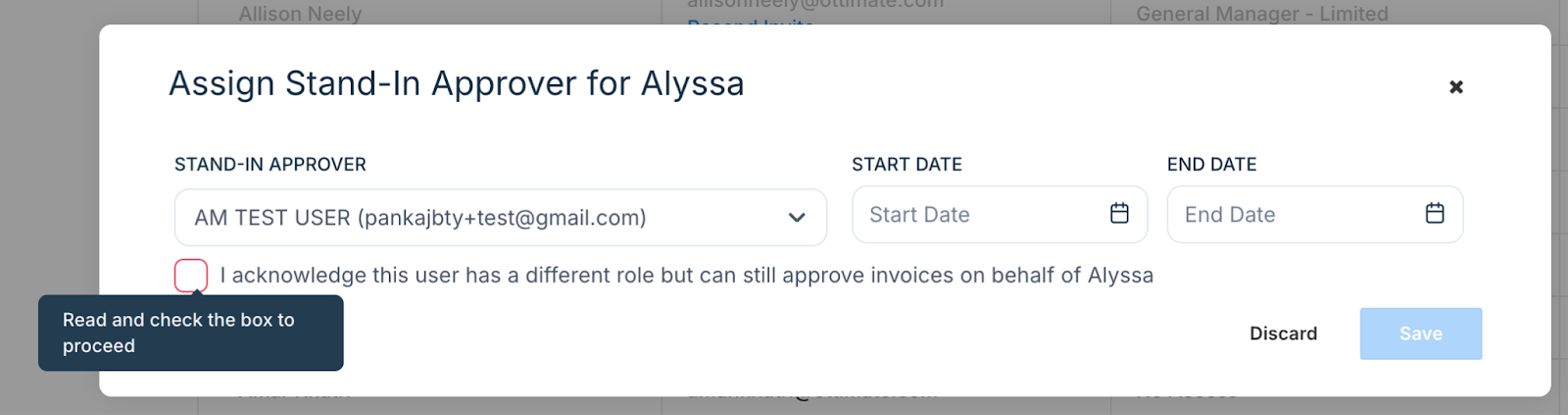
If the “stand-in’s” role does not match the primary approver:
You’ll see a confirmation checkbox:
“I acknowledge this user has a different role but can still approve invoices on behalf of the primary approver.”
This ensures administrators clearly understand the implications of assigning a cross-role stand-in.
3. VendorPay Access Check
If the primary approver has VendorPay “Approve Payments” permissions, the stand-in must have matching access to be considered a full match.
If the primary approver does not use VendorPay, this check is skipped.
4. Updated Approval Assignment Logic
“Stand-ins” now only replace the primary approver within the locations the primary approver covers.
This means:
A “stand-in” will not appear on invoices for locations the primary approver does not approve.
A “stand-in” will not inherit broader access than the primary approver.
Object Approver logic is applied first, and stand-ins are inserted only where the primary approver was valid.
This prevents unintended routing or visibility into invoices outside the intended scope.
5. Permission Restriction (New)
“Stand-i”n approvers can now only be assigned from:
Settings → Admin → Manage Users → Find User and add a “Stand-In” Approver to them
Only users with the Manage Users permission can configure stand-ins.
The option has been removed from the individual Profile page for better governance.
FAQs
Q. Does a stand-in approver take on the original user’s role across all locations they have access to?
No. The stand-in does not inherit the original approver’s role across all of their own locations.
Approval rules are first evaluated using the original approver’s role and location scope.
The stand-in is substituted only for invoices the original approver would have been assigned to approve. Invoices outside the original approver’s scope remain unaffected.
Q. Will this change affect my existing invoices or approvals?
No. Invoices that have already been approved or exported will not be affected.
The updated logic only applies to future approval routing.
Q. Do I need to update my approval workflows or policies?
No. Your current workflows remain valid.
This update only improves how stand-ins are selected and applied.
Q. What happens to my existing stand-in approver assignments?
All existing stand-in mappings will continue to work exactly as they do today.
The new rules (location, role, VendorPay matching) apply only when adding or editing a stand-in.
Q. Why don’t I see a role-mismatch warning for stand-ins I added earlier?
Warnings appear only during new assignments or when you edit an existing mapping.
Older stand-ins remain unchanged unless updated.
Q. Why are some users greyed out when assigning a stand-in?
Those users don’t meet the minimum matching criteria, such as:
No shared location access
Missing VendorPay approval permission (when required)
Hover over the user to see why they’re ineligible.
Q. Will this reduce unnecessary approval notifications?
Yes. Stand-ins will now only receive approvals that the original approver was actually eligible for.
Additional Information
For further assistance, contact Ottimate Support by emailing Support@ottimate.com or clicking here.
Was this article helpful?
That’s Great!
Thank you for your feedback
Sorry! We couldn't be helpful
Thank you for your feedback
Feedback sent
We appreciate your effort and will try to fix the article