TABLE OF CONTENTS
- Pre-requisite: Designating Bills for Ottimate Payment
- Step 1: Locating the Report
- Step 2: Configuring Filters
- Step 3: Generating and Exporting
Pre-requisite: Designating Bills for Ottimate Payment
Invoices must be marked in the Pay Bills section of the Accounts Payable module to ensure they are categorized correctly.
- Action: Check the "electronic payment" box and select the invoices to be paid via Ottimate.
- Result: The system assigns a check number of '0' to these selections and marks the invoices as paid in ClubEssentials.
Step 1: Locating the Report
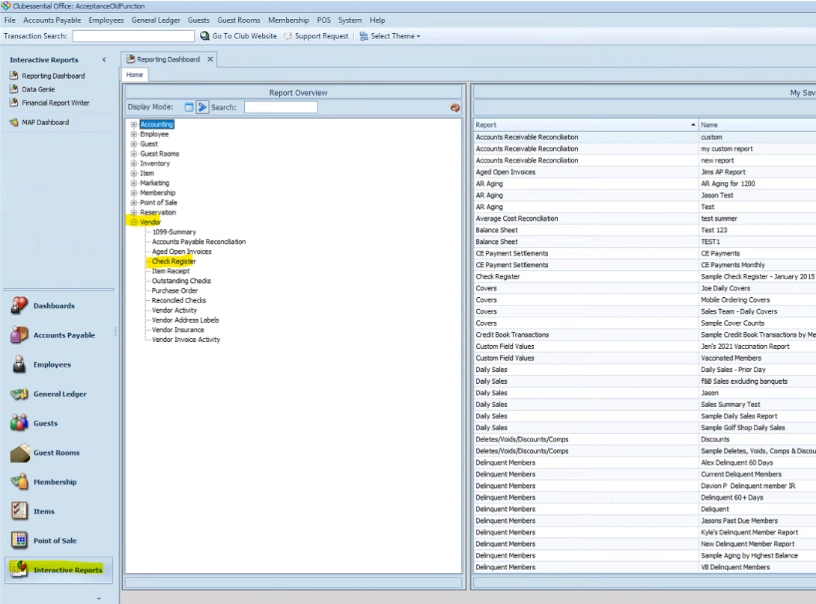
- Open Interactive Reports: Select the Interactive Reports module icon in the lower-left corner of the screen.
- Expand Vendor Reports: Select the "+" sign next to Vendor to show the canned interactive reports.
- Open Check Register:Double left-click on the title Check Register to open the report settings.
Step 2: Configuring Filters
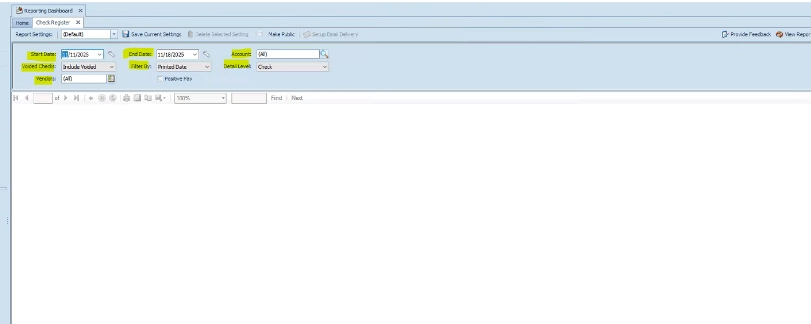
Before running the report, adjust the following filters to ensure the data matches what is needed for Ottimate:
| Filter | Description |
|---|---|
| Start/End Date | Controls the date range for the payments. |
| Account | Filters by specific operating accounts if the club uses more than one. |
| Void Checks | Choose to include, exclude, or show only voided checks. |
| Filter By | Select whether to pull data based on the Print Date or the Transaction Date. |
| Detail Level | Set to Check for a condensed version, or expand for more detail. |
| Vendors | Allows you to filter the report for specific vendors only. |
| Positive Pay | Used for exporting flat files for third-party systems. |
Step 3: Generating and Exporting
Run Report: Select View Report in the top right corner.
- Note: If you change any filters after this, you must click "View Report" again to refresh the data.
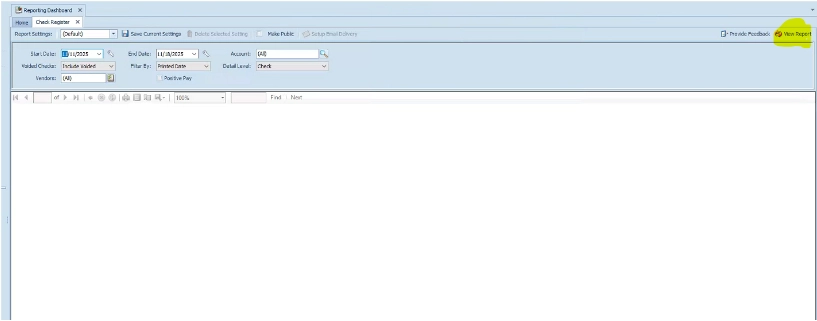
- Note: If you change any filters after this, you must click "View Report" again to refresh the data.
Export File: Click the Floppy Disk icon in the report toolbar.
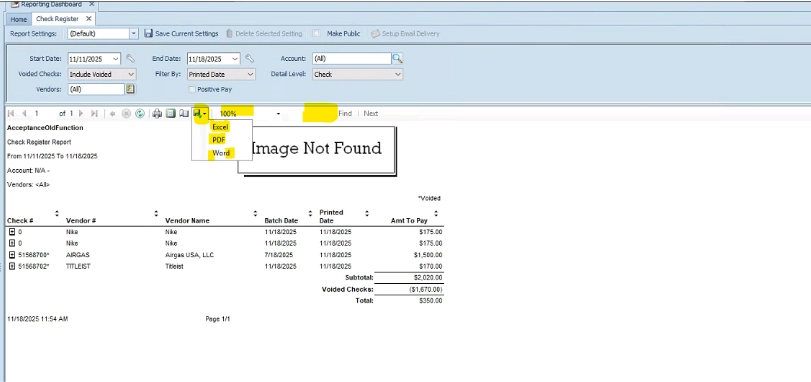
3. Select Format: Choose Excel (typically preferred for Ottimate imports), PDF, or Word.
Was this article helpful?
That’s Great!
Thank you for your feedback
Sorry! We couldn't be helpful
Thank you for your feedback
Feedback sent
We appreciate your effort and will try to fix the article