Northstar provides two specific workflows to extract payment data for use in other systems like Ottimate.
TABLE OF CONTENTS
Method 1: Vendor Summary Report (via Reports)
Use this method to generate a formatted summary of vendor activity.
- Access the Module: Navigate to the Accounts Payable module.
- Select Report: Under the Reports section, click on Vendor Summary.
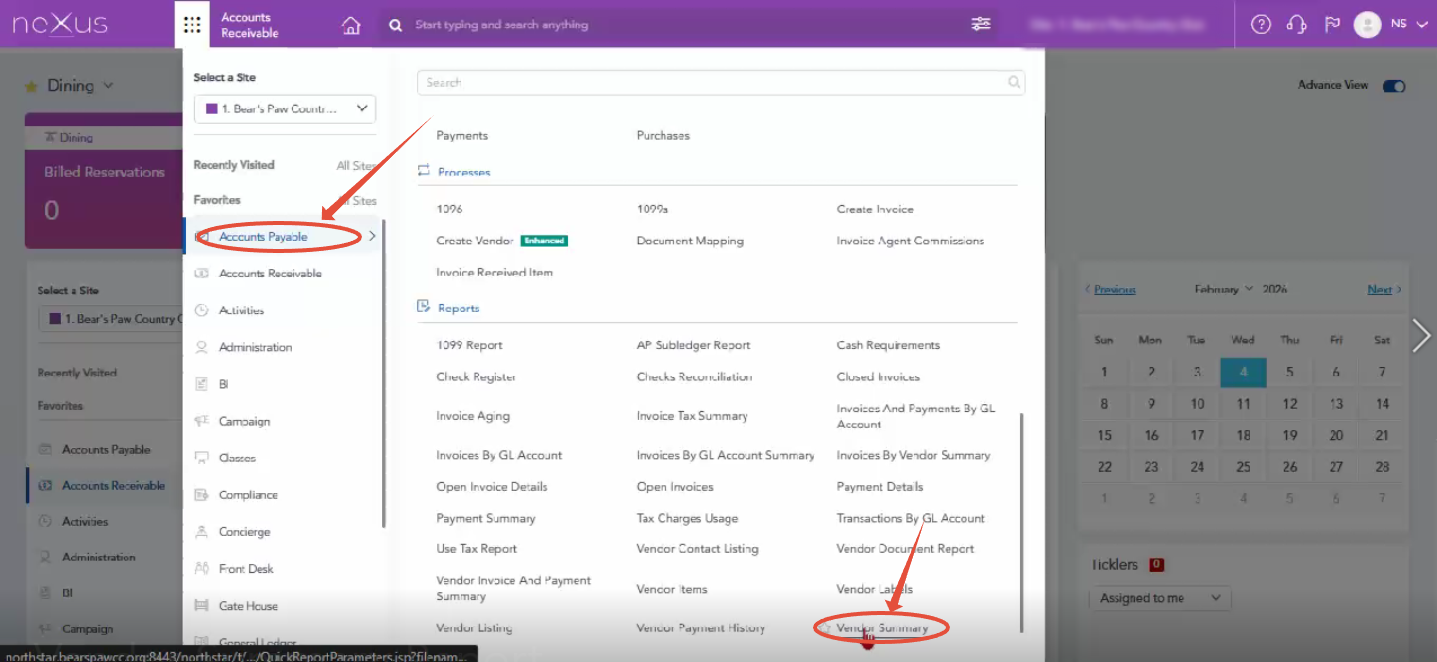
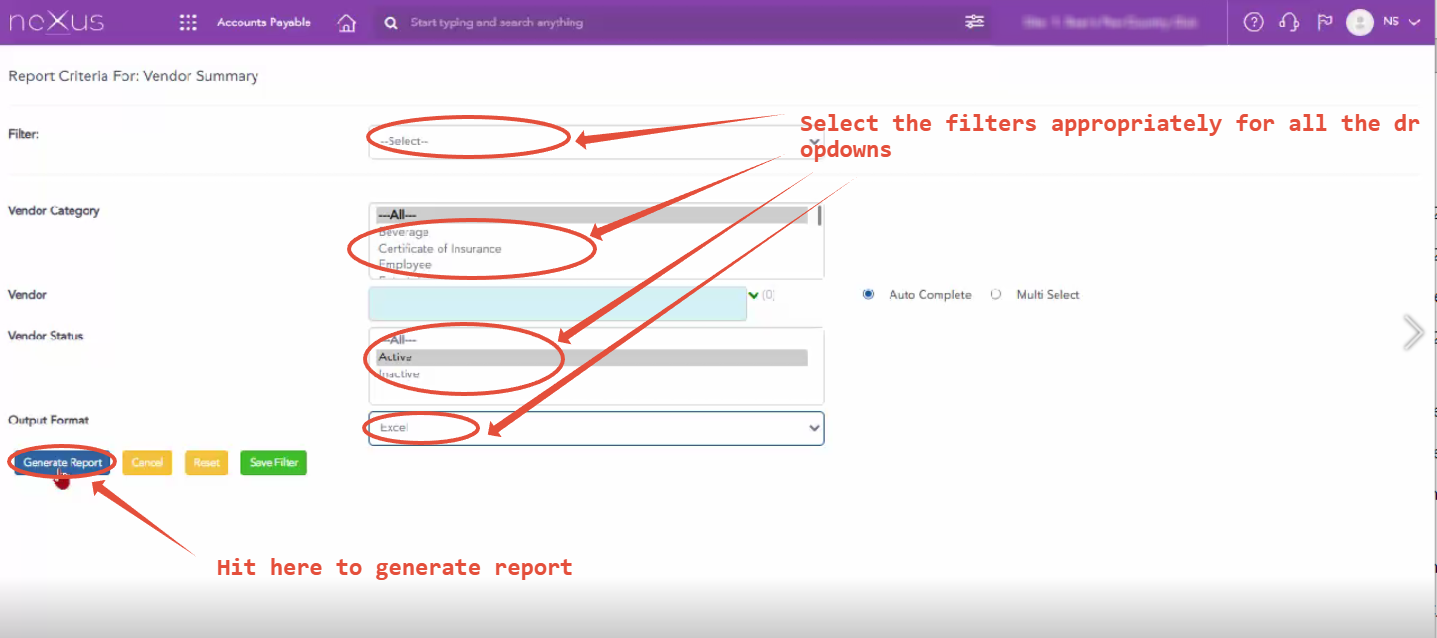
- Set Filters:
- Select the Vendor(s) from the dropdown (defaults to "All").
- Ensure the Status is set (e.g., Active).
- Select Format: Change the file type from PDF to Excel.
- Generate: Click the Save Filter button to process and download the file.
Method 2: Payment Inquiry Export (via Inquiry)
This method is used to search for and export specific payment transaction lines.
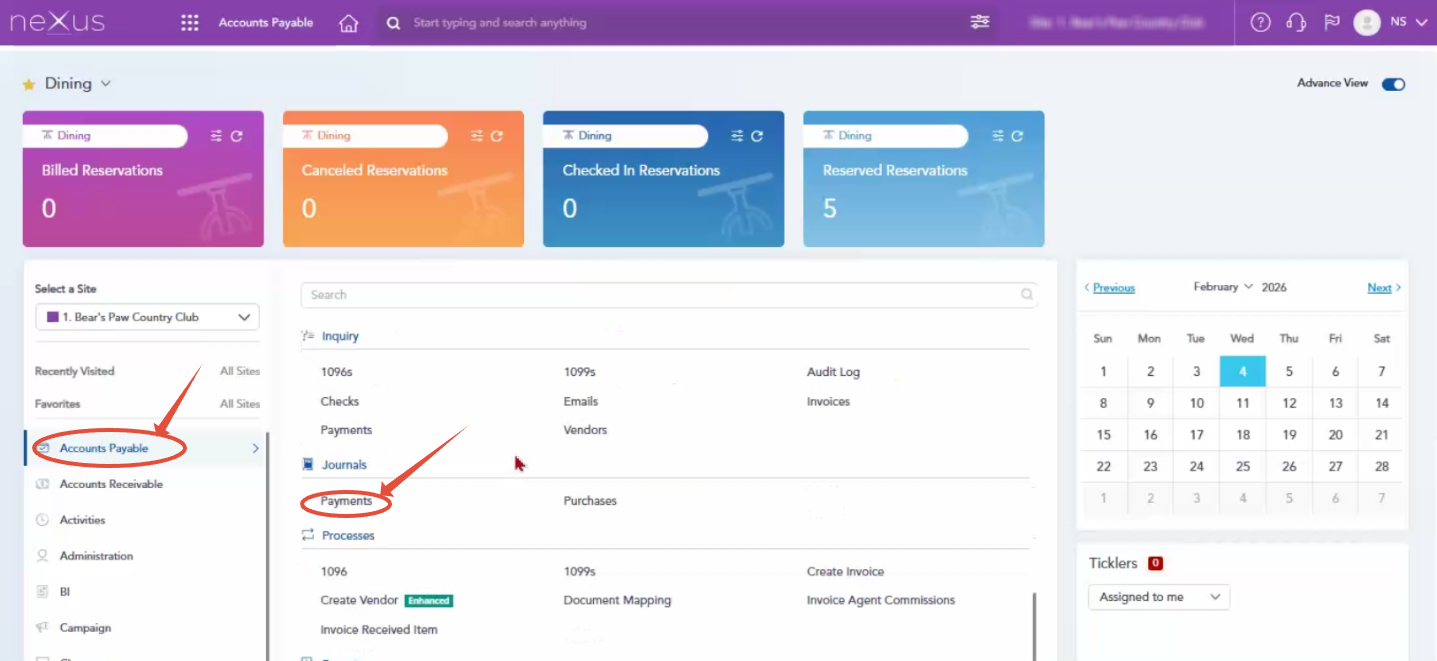
- Access Inquiry: In the Accounts Payable module, navigate to the Inquiry section.
- Select Payments: Click on the Payments link.
- Search Criteria: * Define your search parameters such as Invoice Number, Vendor, or Batch #.
- Specify a Payment Type (e.g., Check, ACH, etc.) if necessary.
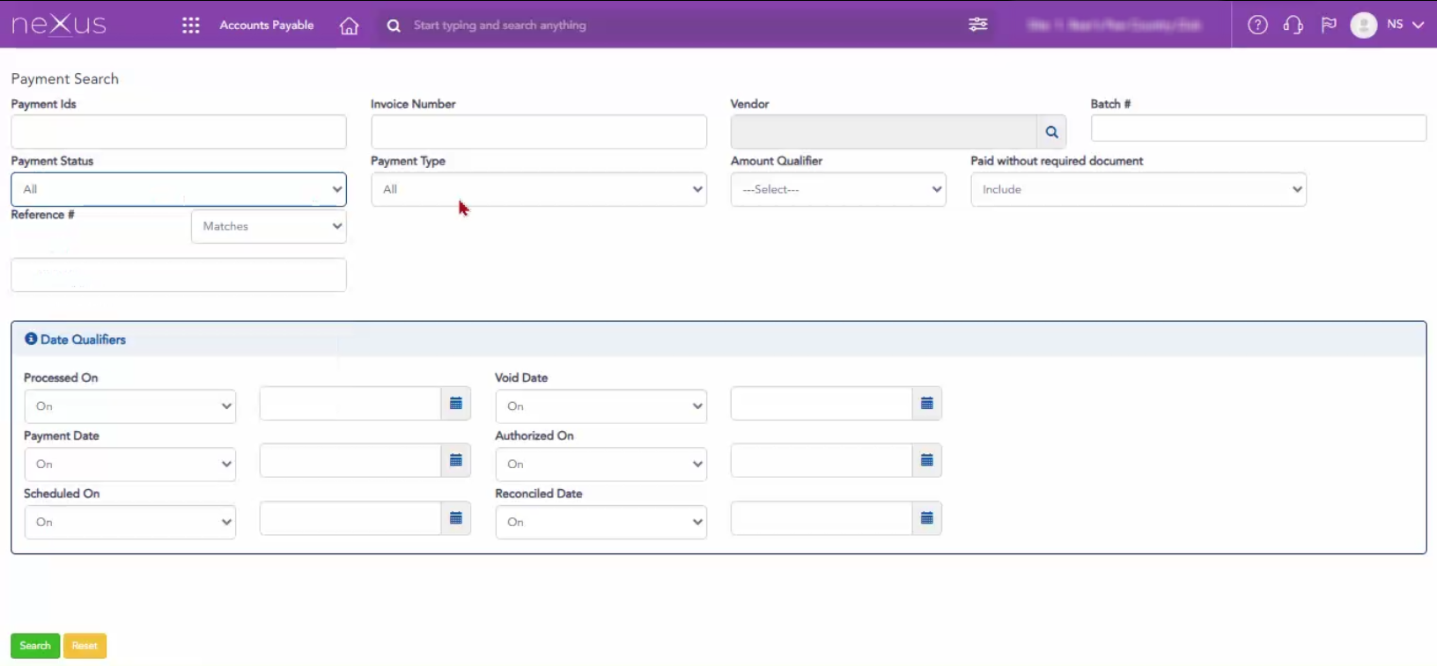
- Execute Search: Click the Magnifying Glass (Search) icon.
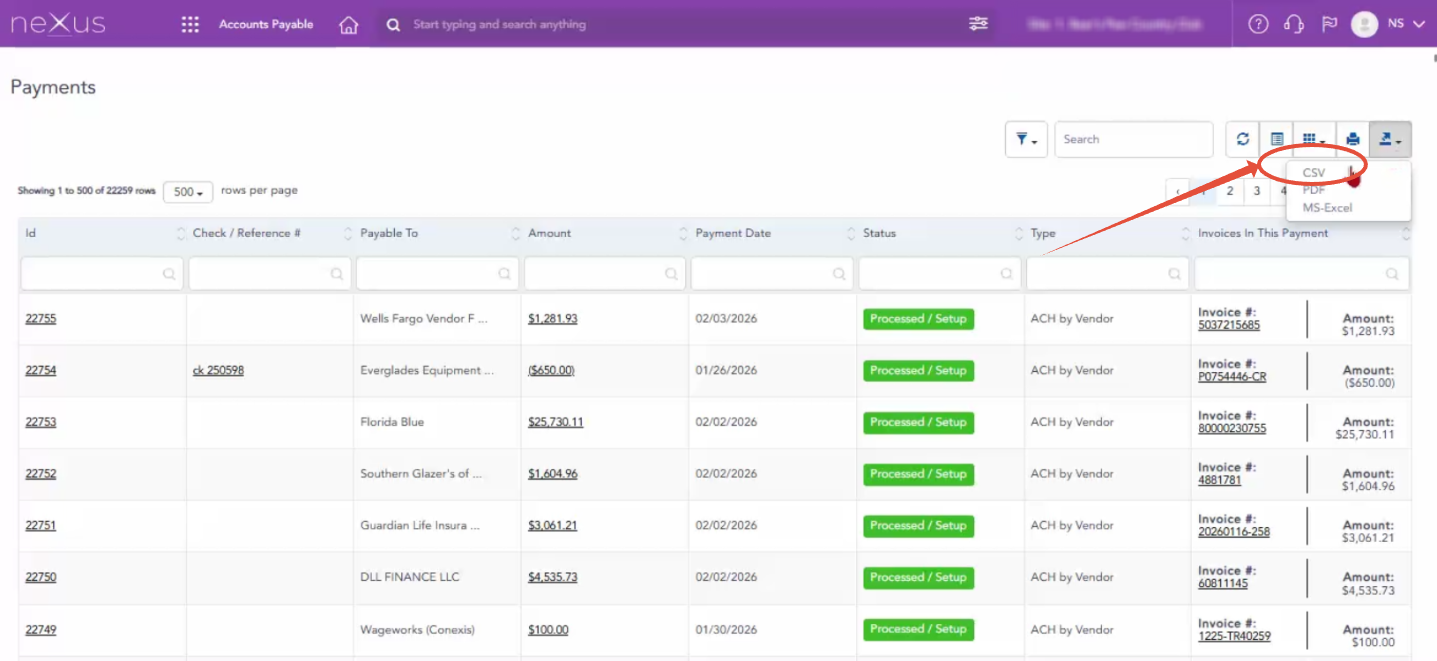
- Export Results:
- Once the results populate, locate the Arrow Icon in the top right corner.
- Select the file type (Excel, CSV, or PDF) to download the data.
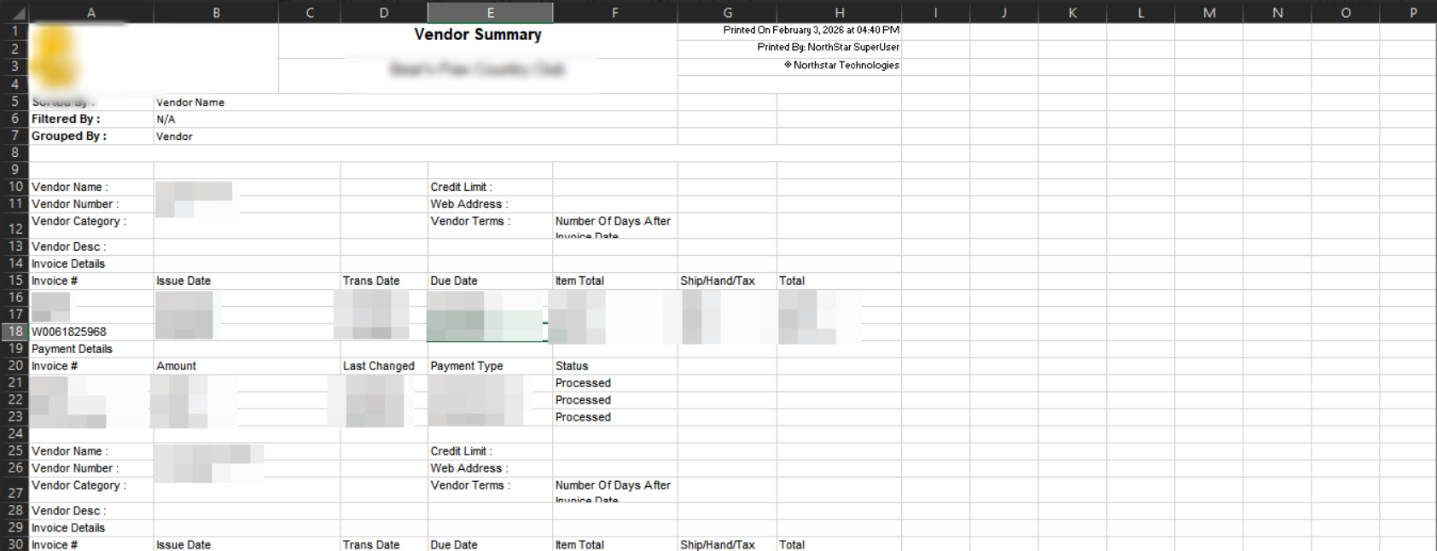
A sample report would look like below:
Was this article helpful?
That’s Great!
Thank you for your feedback
Sorry! We couldn't be helpful
Thank you for your feedback
Feedback sent
We appreciate your effort and will try to fix the article