Overview
Variance Manager Auto-Draft Rules allow Ottimate to automatically generate export draft batches in Variance Manager when an invoice is exported and contains Item Validation variances. Rather than requiring users to manually locate variances and assemble a batch after invoice export, the system creates a ready-to-review draft in the Drafts tab automatically.
Rules are configurable at the vendor level and can be toggled on or off directly from the Variances tab. When a rule is enabled for a vendor and a matching invoice is exported, a draft batch is created automatically, labeled as "Auto Generated by Ottimate," and surfaced for review without any manual steps.
Goals
Auto-Draft Rules are designed to:
Eliminate the manual step of rebuilding context in Variance Manager after invoice export.
Ensure variance items are consistently captured as draft batches without user intervention.
Give users control over which vendors trigger auto-draft behavior via simple toggle rules.
Reduce the time from invoice export to cost batch export for high-volume operations.
Preserve user control by keeping all drafts editable and exportable before they reach SMS.
How Auto-Draft Rules Work
Auto-Draft Rules are evaluated at the moment an invoice is exported. The system checks whether the exported invoice meets all conditions for auto-draft creation. If conditions are met, a draft batch is created automatically in the Drafts tab.
Conditions for Auto-Draft Creation
A draft is automatically created when all of the following are true:
The invoice has been exported.
The invoice contains Item Validation variances.
The vendor on the invoice has an Auto-Draft Rule enabled in Variance Manager.
What Gets Included in the Draft
The auto-generated draft batch includes:
Only matched line items with variances (overbilling or underbilling, based on your rule settings).
A reference link back to the source invoice.
Attribution to the Ottimate system user with the label "Auto Generated by Ottimate."
The following items are excluded from auto-generated drafts:
Unmatched items.
Items with no cost variance.
Items that have been manually excluded.
Draft Conflict Behavior
If a user-created draft already exists for the same invoice and company, the system will not override or modify it. Auto-generated drafts are always additive and never replace existing user work. If a system draft already exists for a given invoice, the system will update that draft rather than creating a duplicate.
Where to Find Auto-Draft Rules
Auto-Draft Rules are managed from within Variance Manager:
Navigate to Item Validation in the left navigation.
Open Variance Manager.
Select your company from the company selector at the top.
Click "Automation Rules" in the top right corner of the Variances tab (lightning bolt icon).
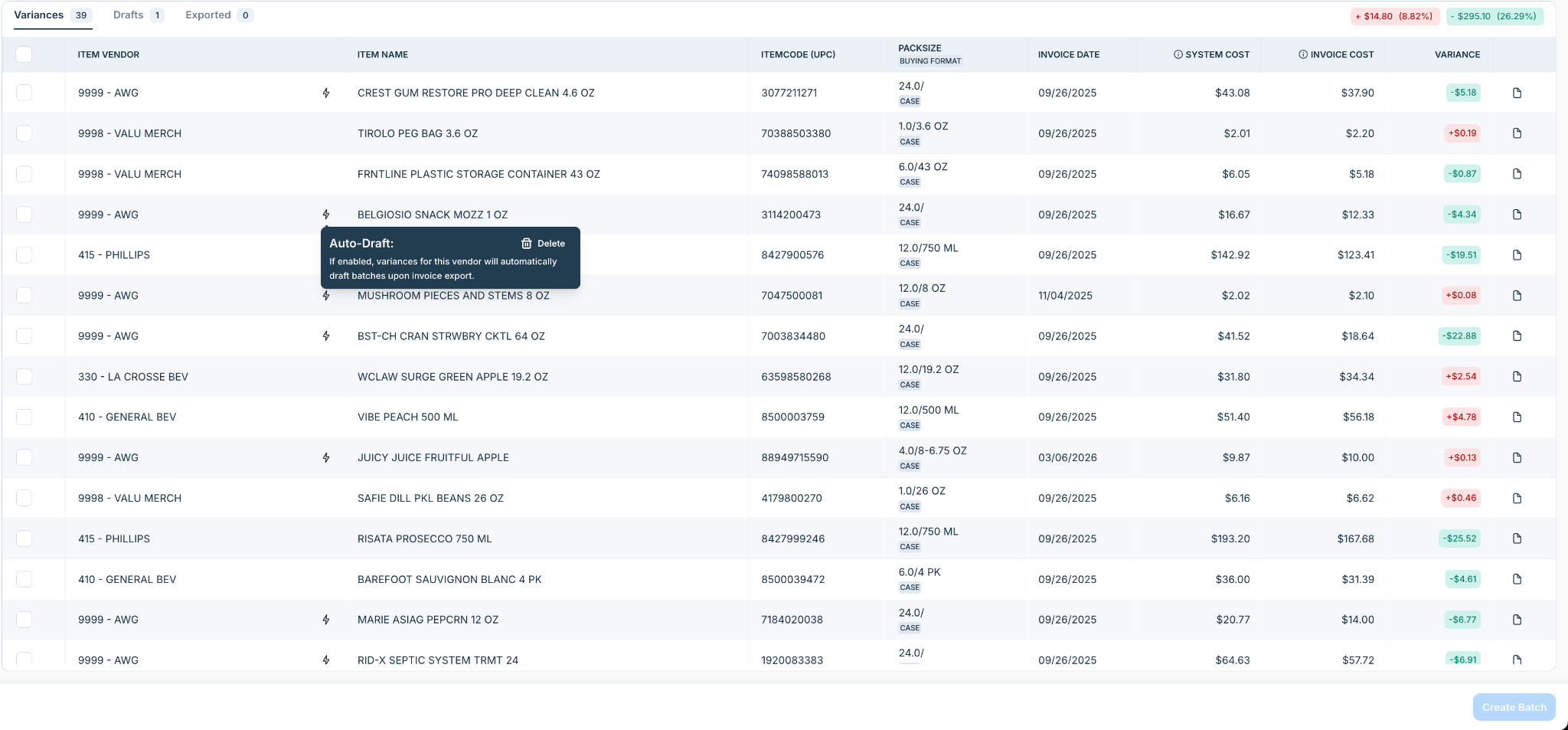
The Automation Rules modal lists all configured auto-draft rules. Each vendor row in the Variances tab also displays an Auto-Draft status indicator when a rule is active. Hovering over the icon shows: "Auto draft enabled. Invoices for this vendor will generate draft batches when exported."
How to Configure Auto-Draft Rules
Add a New Rule
In the Variance Manager, go to the Variances tab.
Click "Automation Rules" in the top right corner.
In the modal, click "+ Add Rule(s)".
Select the Vendor(s) you want to apply the rule to.
Select the Location(s), or leave as All.
Select the Variance Type: Overbilling, Underbilling, or All.
The rule takes effect immediately for future invoice exports.
Delete a Rule
Open the Automation Rules modal from the top right of the Variances tab.
Locate the rule you want to remove.
Click the delete icon on that row.
Deleting a rule does not affect existing drafts. Any drafts already created for that vendor remain in the Drafts tab.
Managing Auto-Generated Drafts
Finding Drafts
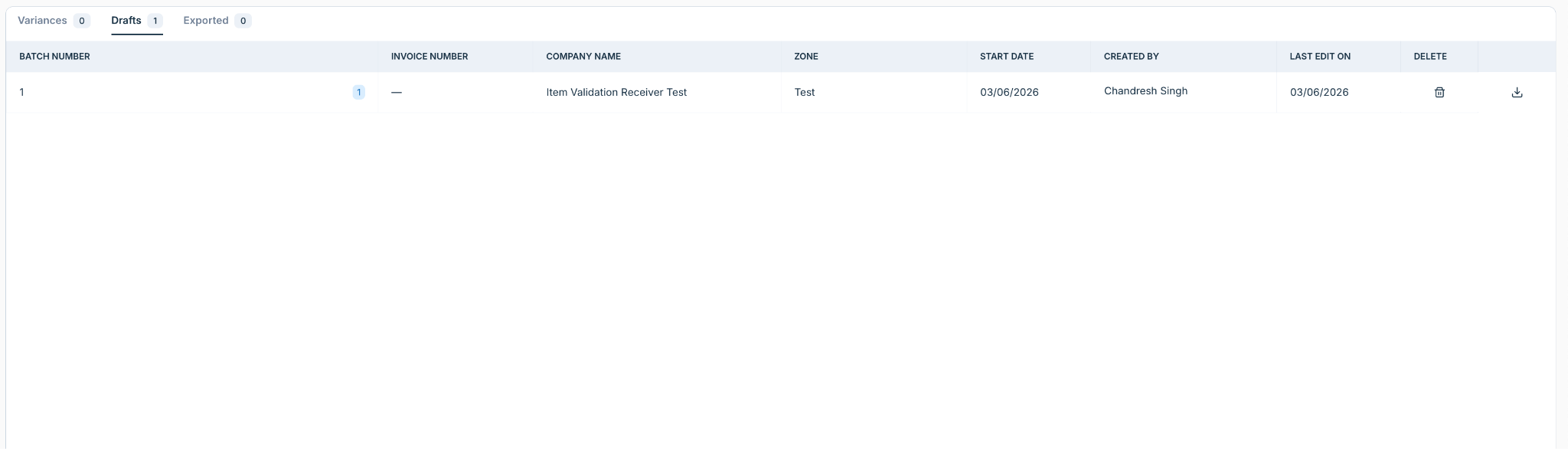
Auto-generated drafts appear in the Drafts tab alongside any manually created drafts. System-generated drafts are clearly labeled "Auto Generated by Ottimate" and display a visual indicator to distinguish them from user-created batches.
The Drafts tab shows a badge count with the number of active drafts, including auto-generated ones.
Reviewing and Editing a Draft
Open the Drafts tab in Variance Manager.
Locate the auto-generated draft. It will show the source invoice reference and creation timestamp.
Click the draft to open it.
Review the variance line items included in the draft.
Remove any items you do not want to include in the export.
Edit batch details such as effective date and zone as needed.
When ready, export the batch to your connected SMS system.
Drafts autosave if you navigate away mid-edit, so no work is lost.
Exporting a Draft
Export behavior follows the standard Variance Manager export flow. If an export fails, the batch returns to the Drafts tab with an error state for retry. Successfully exported batches move to the Exported tab with full metadata including export date, batch number, and item details.
Rule Configuration Reference
Frequently Asked Questions
What happens if I export an invoice and the vendor does not have a rule enabled?
No auto-draft is created. You can still manually create a batch from the Variances tab as before.
Can I add items to an auto-generated draft?
You can remove items from an auto-generated draft. Adding items to a system-generated draft may not be available depending on your role and configuration.
Will disabling a rule delete existing drafts?
No. Disabling a rule only affects future exports. Existing drafts are not modified.
I see a draft I did not create. Why?
If Auto-Draft Rules are enabled for a vendor, the system will generate drafts automatically when invoices for that vendor are exported. Check the Variances tab to see which vendors have auto-draft enabled.
Does this affect my existing Variance Manager export workflow?
No. Auto-Draft Rules add a layer of automation on top of the existing workflow. Your manual export process is unchanged. Rules only create drafts; they do not trigger exports.
Was this article helpful?
That’s Great!
Thank you for your feedback
Sorry! We couldn't be helpful
Thank you for your feedback
Feedback sent
We appreciate your effort and will try to fix the article