A guide to what's changing, what's new, and how to switch between designs.
What's new in Invoice Details
Bulk actions
Select multiple line items to apply a change to all of them in one action:
Tick the checkbox on each line item you want to change (or the top checkbox to select all).
Apply what you need: a GL account or other accounting field, tax treatment, accepting AI suggestions, or deleting the selected items.
Click Apply once to save everything.
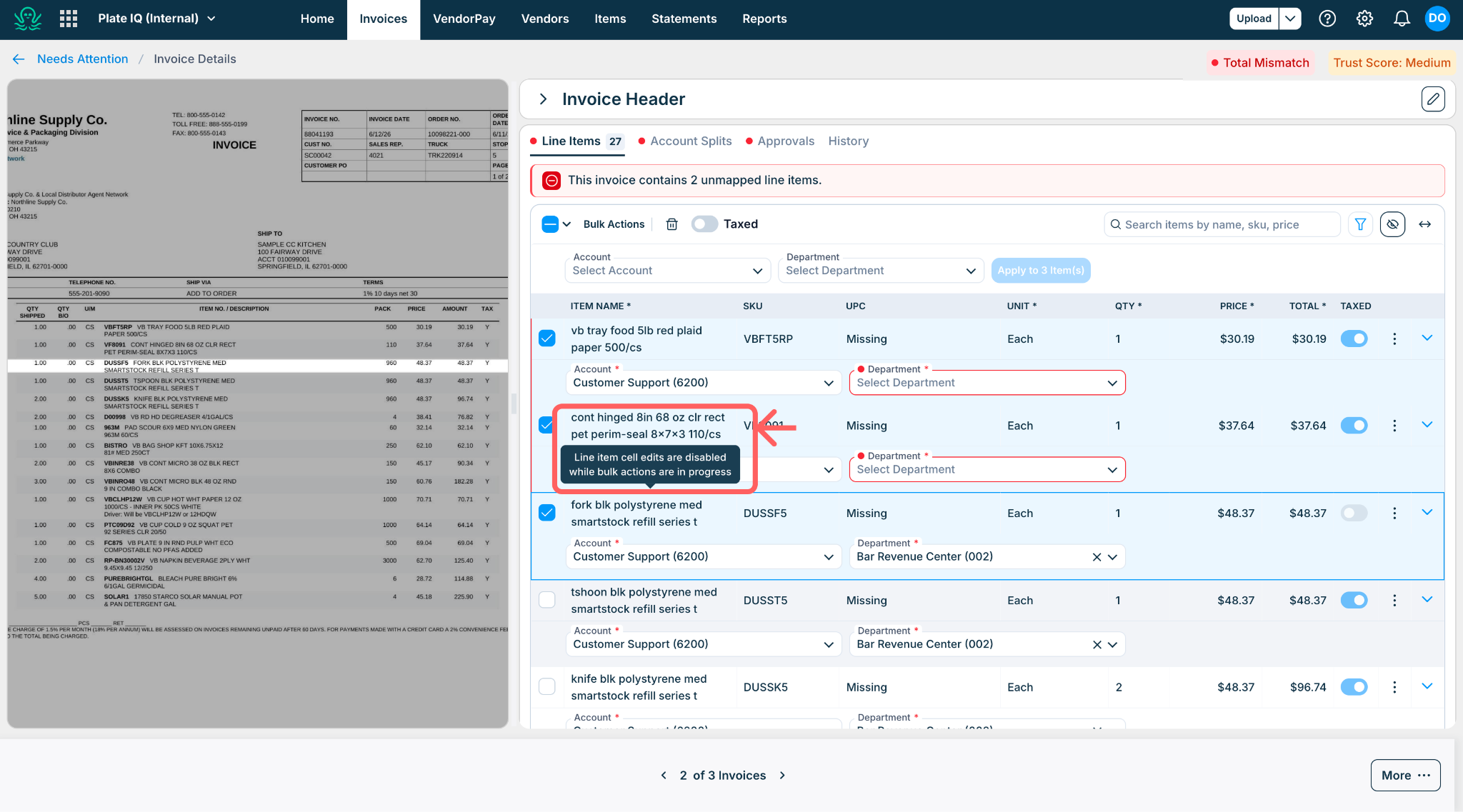
To protect your work, individual cell edits pause while bulk actions are open, finish or close bulk actions to resume them (accounting fields can still be edited individually). And if you have unsaved line item edits when you open bulk actions, you will be prompted to save them first so nothing is lost.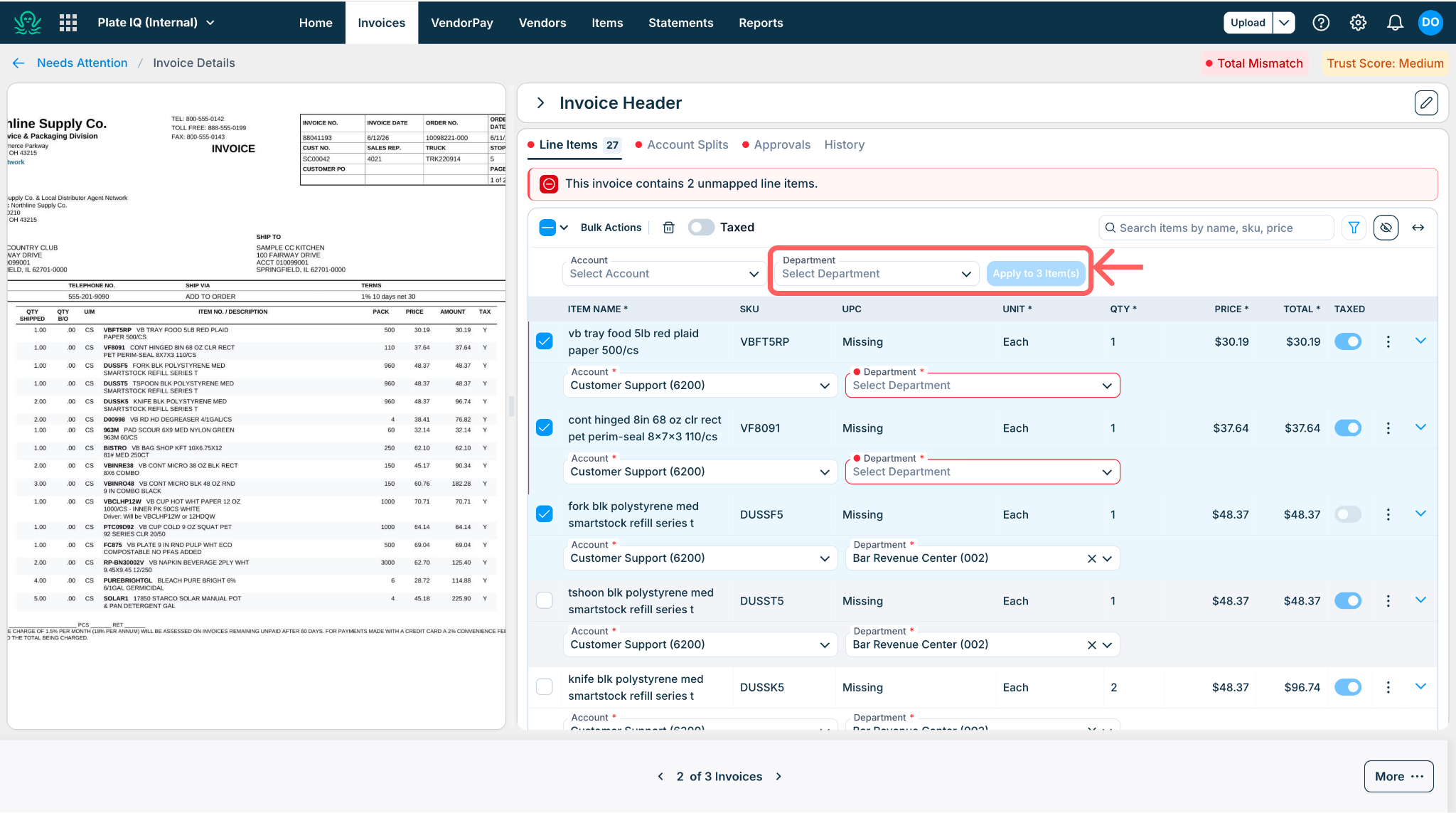
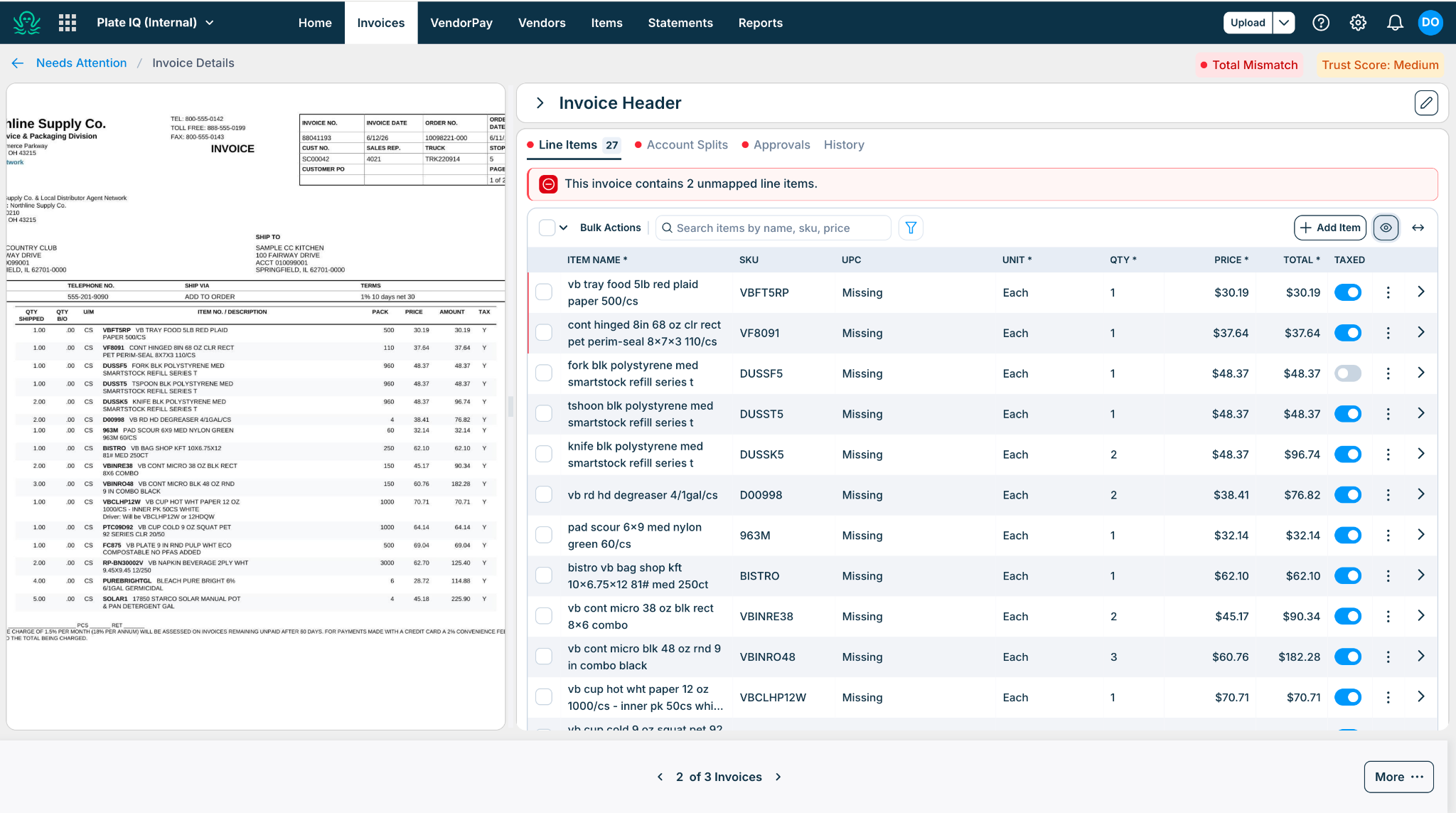
See more line items on screen
The layout is more compact, so more of your invoice fits on screen without scrolling.
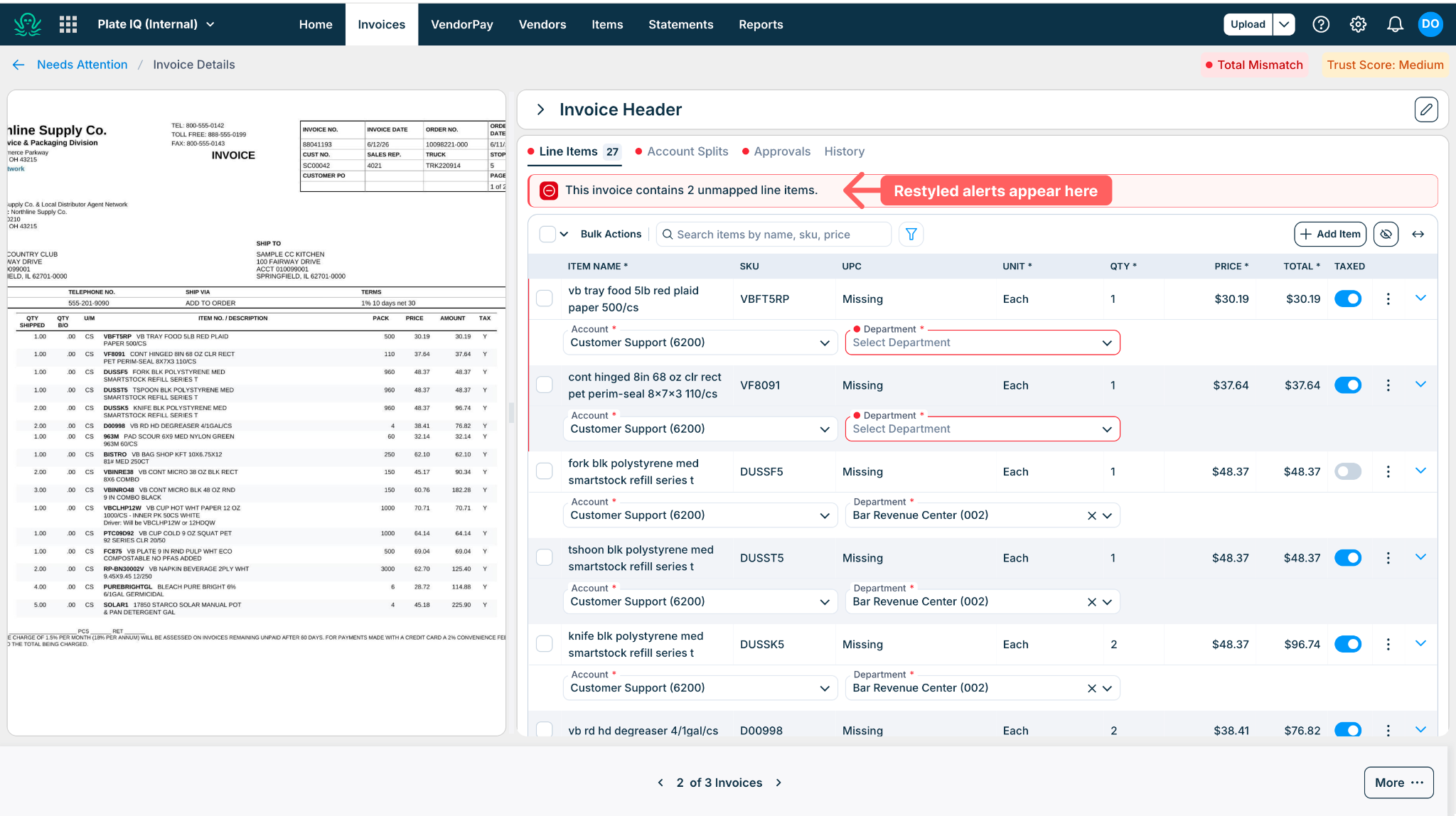
Alerts
Alerts have been restyled to be cleaner and easier on the eyes, and banners are now ordered by priority: errors first, then warnings, then everything else, so the most urgent issue is always at the top.
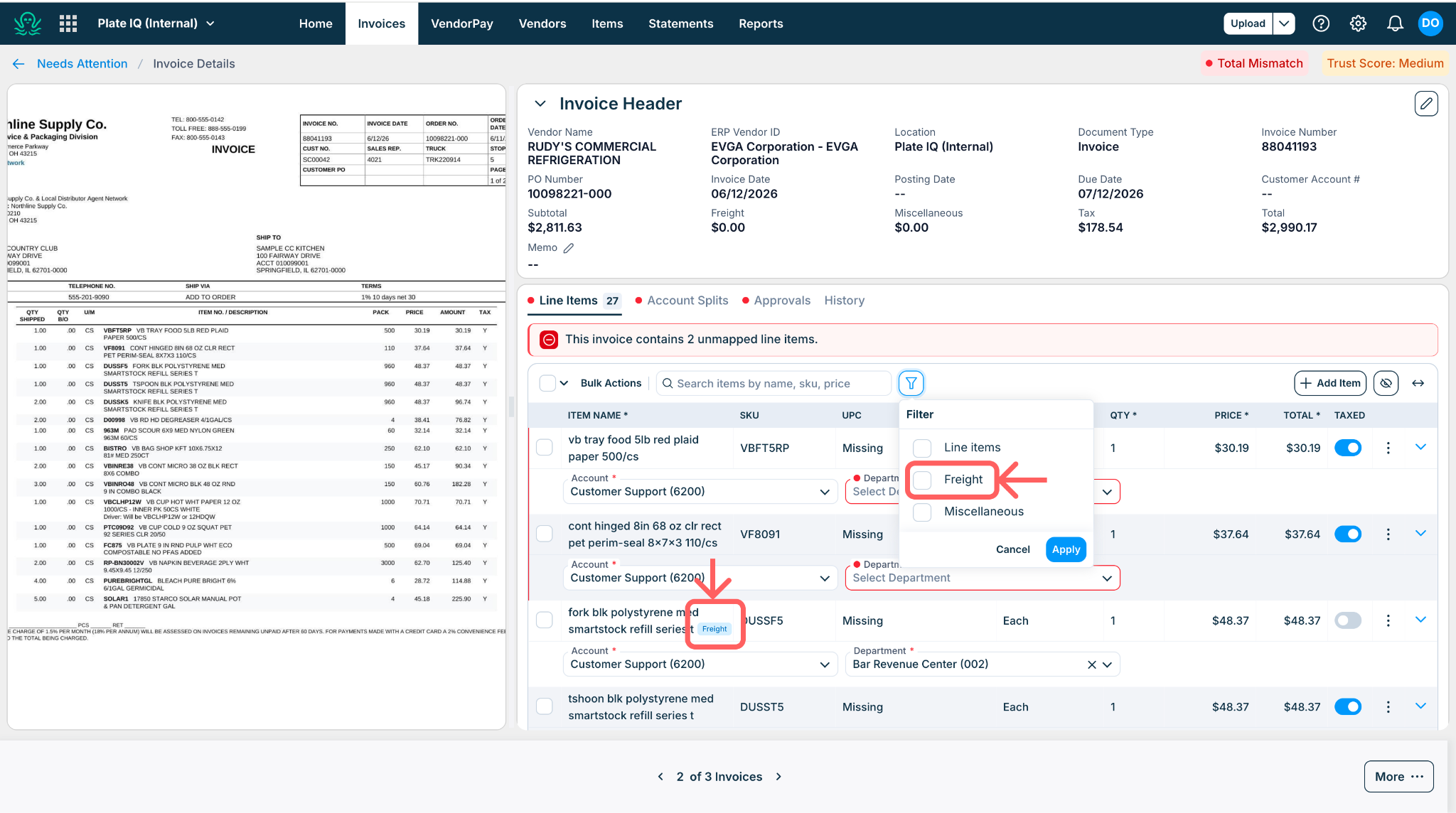
Freight and miscellaneous charges
If your account uses freight and miscellaneous detection, these charges are now labeled so they stand out from regular line items, and a filter lets you view just those charges, useful when checking a batch of invoices for extra fees.
Account Splits, Approvals, and History
The other tabs on the invoice got the same treatment:
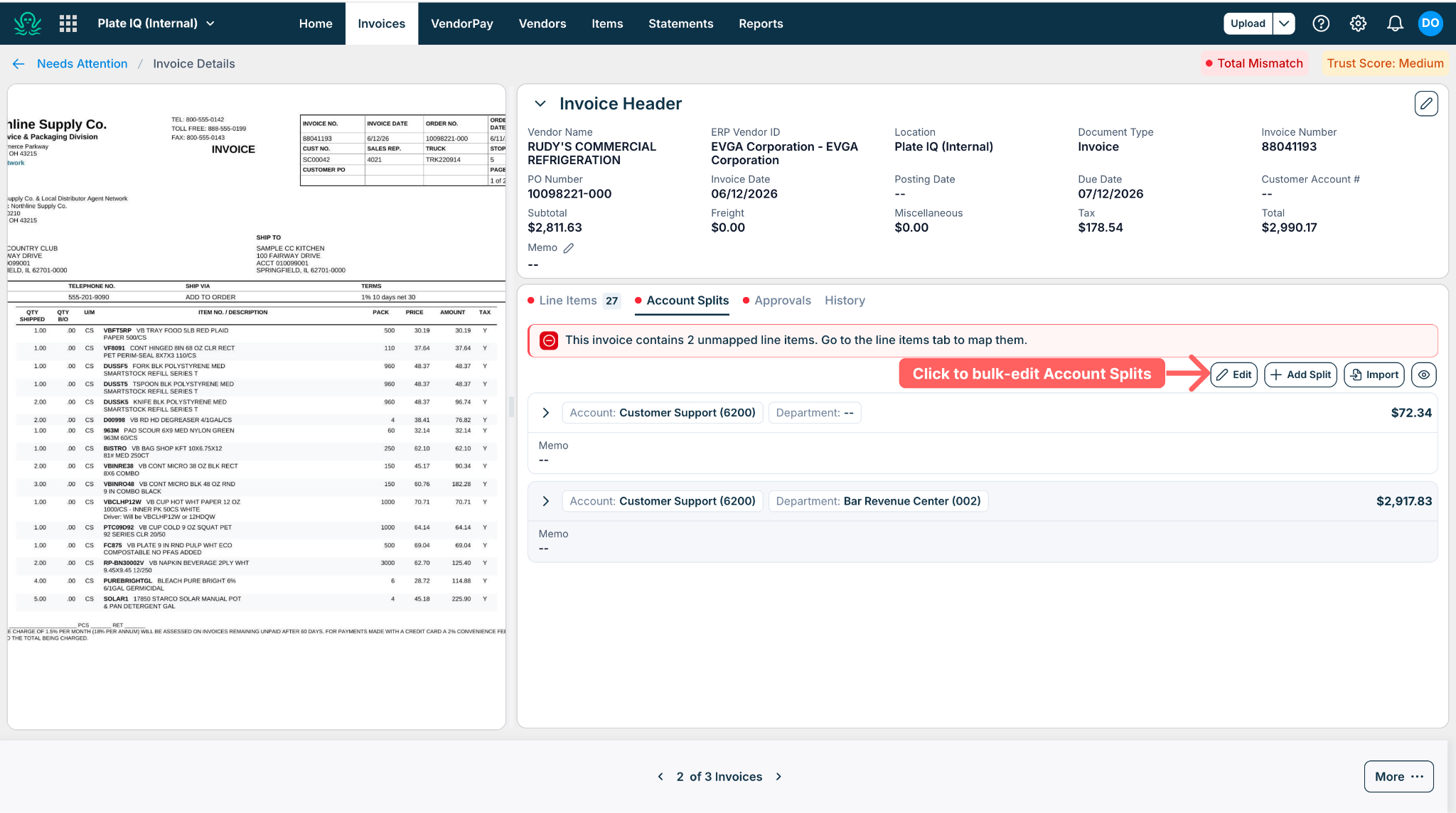
Account Splits: bulk actions work here too, and the running Total and Difference stay visible at the top while you work. You can update the memo directly, and a new clone option copies an existing split instead of rebuilding it.
Approvals: a more compact view shows more approvers at once, with clearer color indicators for each approval state.
History: a more compact view, plus new search and filters to find a specific change quickly.
Other improvements
Full item names are shown instead of being cut off (on invoices up to 25 line items).
Faster editing: changing an accounting field no longer reloads the whole screen, only the field you touched updates.
Clearer AI suggestions: a clean suggestion icon with accept and reject actions replaces the yellow dot.
Need help?
If anything looks off after the change, contact your Ottimate support contact or submit a ticket through the Helpdesk, and use the video above for a quick tour of the new screens.
Was this article helpful?
That’s Great!
Thank you for your feedback
Sorry! We couldn't be helpful
Thank you for your feedback
Feedback sent
We appreciate your effort and will try to fix the article