Card on File Payment Method
Card on File introduces a streamlined payment method for vendors, making recurring and automatic charges simple and secure. Whether you're handling utility payments, software subscriptions, or one-time bills, this feature automates card management between you and your suppliers through the vendor portal.
Let’s walk through how Card on File works, how to set it up, and how to manage payments and issues.TABLE OF CONTENTS
- 1. Introduction to Card on File
- 2. Getting Started
- 3. Card Lifecycle Management
- 4. Managing Credit Limits
- 5. Generating and Placing Cards on File
- 7. Viewing, Editing, and Troubleshooting
- 8. How to Release for Scheduling
- 9. Administrative Access to Card Details (View COF Card Credentials)
- 10. Understanding Transaction Status Colors in Card on File
- Frequently Asked Questions (FAQ)
1. Introduction to Card on File
Card on File offers a simple, secure way for vendors to process recurring or automatic charges. It automates card management between you and suppliers in the vendor portal, whether for utilities, subscriptions, or one-time bills.
Value & Use Cases Card on File is especially useful for:
Recurring payments: (e.g., monthly utilities, subscriptions).
Location-specific charges: Vendors supporting child cards for specific locations.
Reducing manual intervention: Minimizes the need for manual payment runs.
Pre-payment scenarios: For vendors like Webstaurant, who must be paid in advance.
Unlike vCards, which require manual payment initiation, Card on File enables vendors to process payments on pre-authorized cards. Ottimate then pulls the funds from your bank account after transactions are posted.
2. Getting Started
To begin, navigate to the Card on File tab within Vendor Pay.
User Access & Permissions:
General Access: All Vendor Pay (VP) users have access to the Card on File tab.
Creating Requests: Users with Create Payments permission can initiate and submit card requests.
Approving Requests: Users with the Approve Payments permission can approve or deny card requests from the queue.
The Vendors tab lists suppliers confirmed as Card on File acceptors, ensuring no processing fees are applied to these payments. If you identify a vendor who accepts CoF but is not listed, you can contact support@ottimate.com with the vendor’s name and contact details for verification.
You may create cards for vendors not on our confirmed list. In this case, directly ask the vendor about any card processing fees before setup. This helps you understand payment terms and avoid unnecessary fees.
Getting Started with CoF - Watch Video
3. Card Lifecycle Management
Card Creations
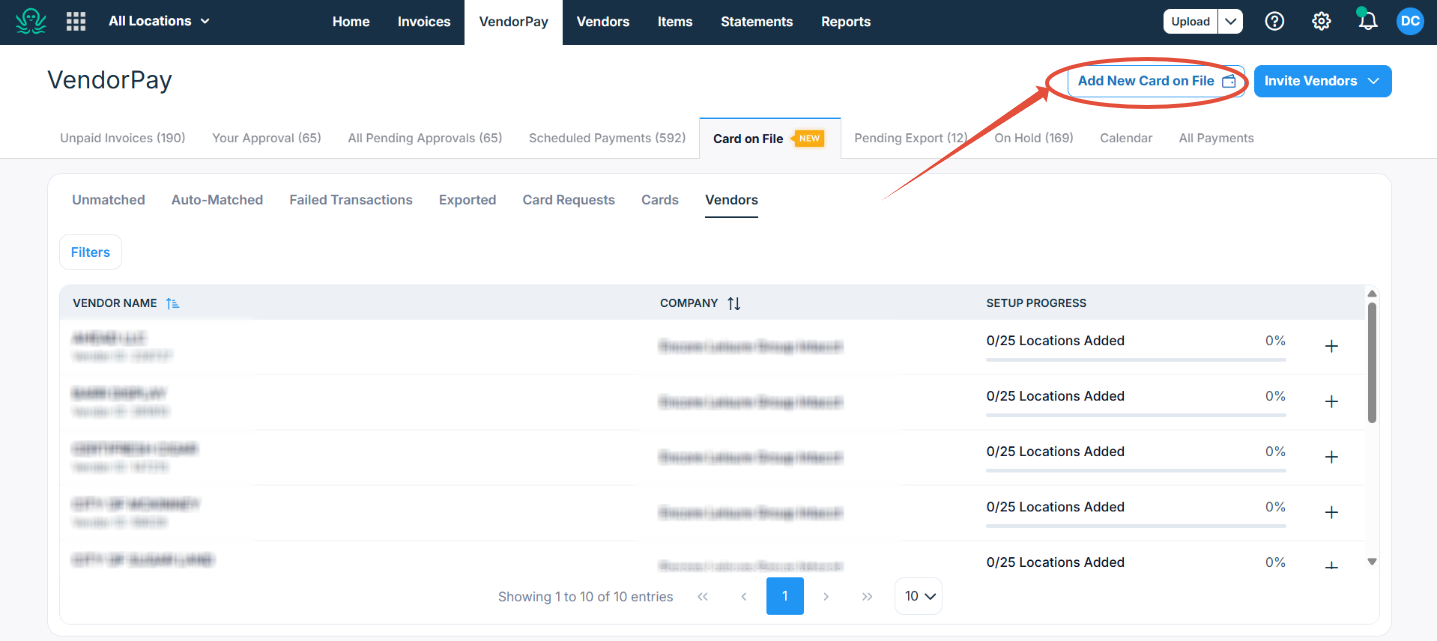
You have two options to create a card: you can create it from the Vendors tab next to a specific vendor, or from the Add New Card on File header button at the top, where you can select any vendor who is not already on the list as well. You must determine if the card should cover all company locations or a single specific location based on your supplier’s portal capabilities. For location-specific cards, the associated bank account is automatically selected; for company-wide cards, the bank account must be selected manually. After setting a Monthly Spend Limit and entering the card’s purpose, the request is submitted for review.
Note on Transaction Matching: If an unlisted vendor adds a processing fee, the transaction and invoice amounts won’t match, requiring you to manually create a separate invoice for the fee to reconcile. To avoid this, we recommend contacting support@ottimate.com to verify a vendor’s terms before adding them.
- Option 1: Card Request Creation - Watch Video
- Option 2:
Card Requests & Approvals
Users with Create Payments permission initiate payment submissions. Admins review these requests from the approval queue. If the requested card amount exceeds the Total Account Limit, the approval button appears greyed out. This safeguard exists because a single card swipe that exhausts the entire account capacity would fail. The Total Account Limit must be increased to safely support the card's potential spend before approval. Even if the limit is exceeded, Admins can still reject the request directly from the queue.
Approving and Denying Card Requests - Watch Video
4. Managing Credit Limits
Vendor Pay extends a daily credit line for Card on File transactions, similar to a credit card with one-day terms.
Vendor Pay extends a credit line for Card on File transactions, similar to a credit card with one-day terms.
Check Progress: Monitor your Total Account Limit, outstanding card charges, and Available Limit from the account overview.
Note: Your Total Account Limit represents your total purchasing power. The Available Limit increases as pending transactions are settled with the bank.
Limit Restrictions: You cannot create or approve an individual card if its monthly limit is higher than your Total Account Limit. This means each card's potential charge is always within your spending capacity.
In-Flight Transactions: You can have several cards whose combined monthly limits may exceed your Total Account Limit because not all cards are used at the same time. "In-Flight" transactions are those that have been authorized but have not yet been settled. Your Total Account Limit applies to the sum of all In-Flight and Pending transactions. If these transactions reach your limit, new charges will be declined until previous ones settle.
Request Limit Increase: To increase your total spending capacity, select Request Limit Increase.
- Pro Tip: Request a limit that covers three days of average volume to account for bank settlement times and ensure uninterrupted spending.
Increasing Account Credit Limit - Watch Video *
5. Generating and Placing Cards on File
Step 1: After requesting approval, click Generate Card to create your card; the details will open in a new tab titled “Card Details.”
Step 2: View and copy the card details to lodge in your supplier's portal. In this view, all card transactions appear below the credentials, letting the user verify activity.
NOTE: For enhanced security, full card details are visible only to the individual who initiated the card request and authorized Admin users. These sensitive credentials are restricted from all other users within the platform.
Generating a Card to place the Card on Vendor Portal - Watch Video *
- Step 3: If your supplier doesn’t accept the first card type, use the Recreate Card to generate a new card with a different configuration.
Recreating a Card - Watch Video
- Step 4: If all card attempts fail, select Mark Unable to Lodge so invoices revert to regular payment methods (ACH, vCard, check run).
Mark Unable to Lodge Option - Watch Video
6. Reconciling and Managing Transactions
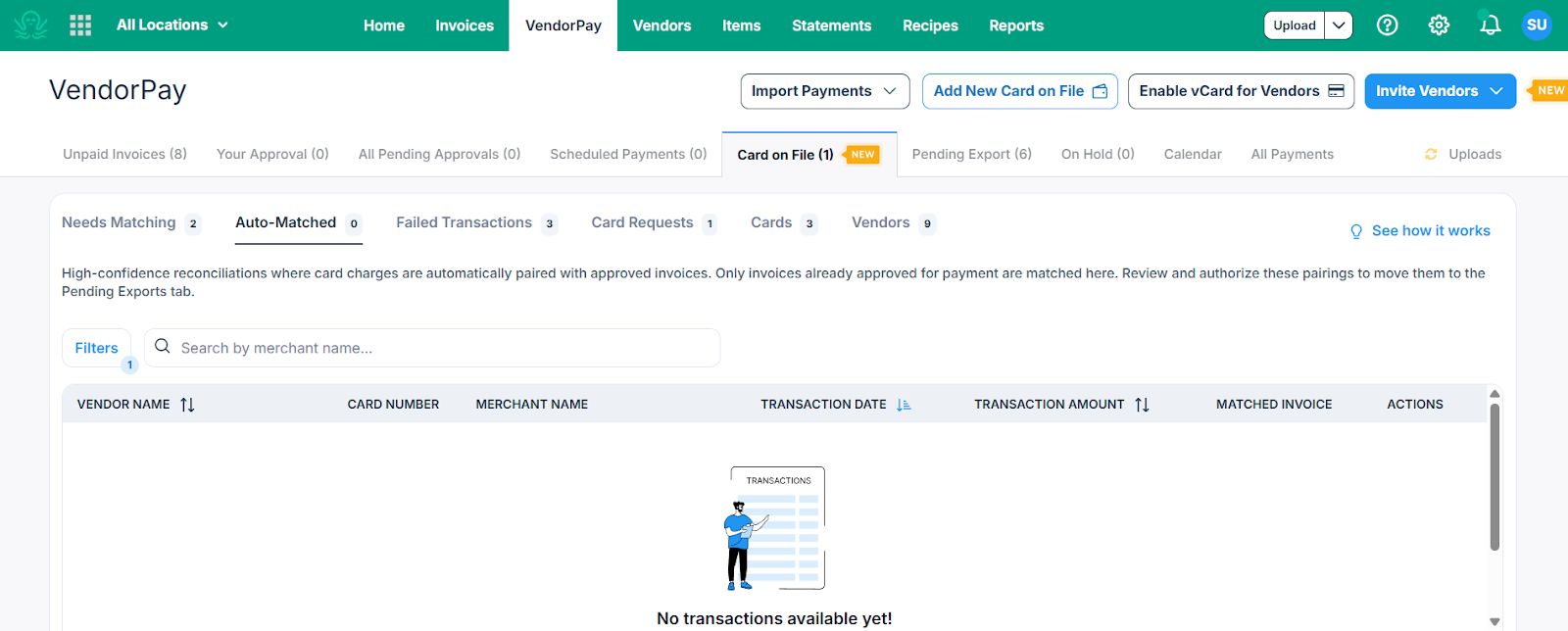
All transactions processed via CoF (Card on File) appear in the system immediately after the charge occurs. If an approved invoice already exists for the specific vendor and location combination for which the card was created, VendorPay will automatch the transaction instantly. The user then reviews the match in the Auto Match tab and approves the transaction to create a payment (checkrun), which is then moved to the Pending Export tab.
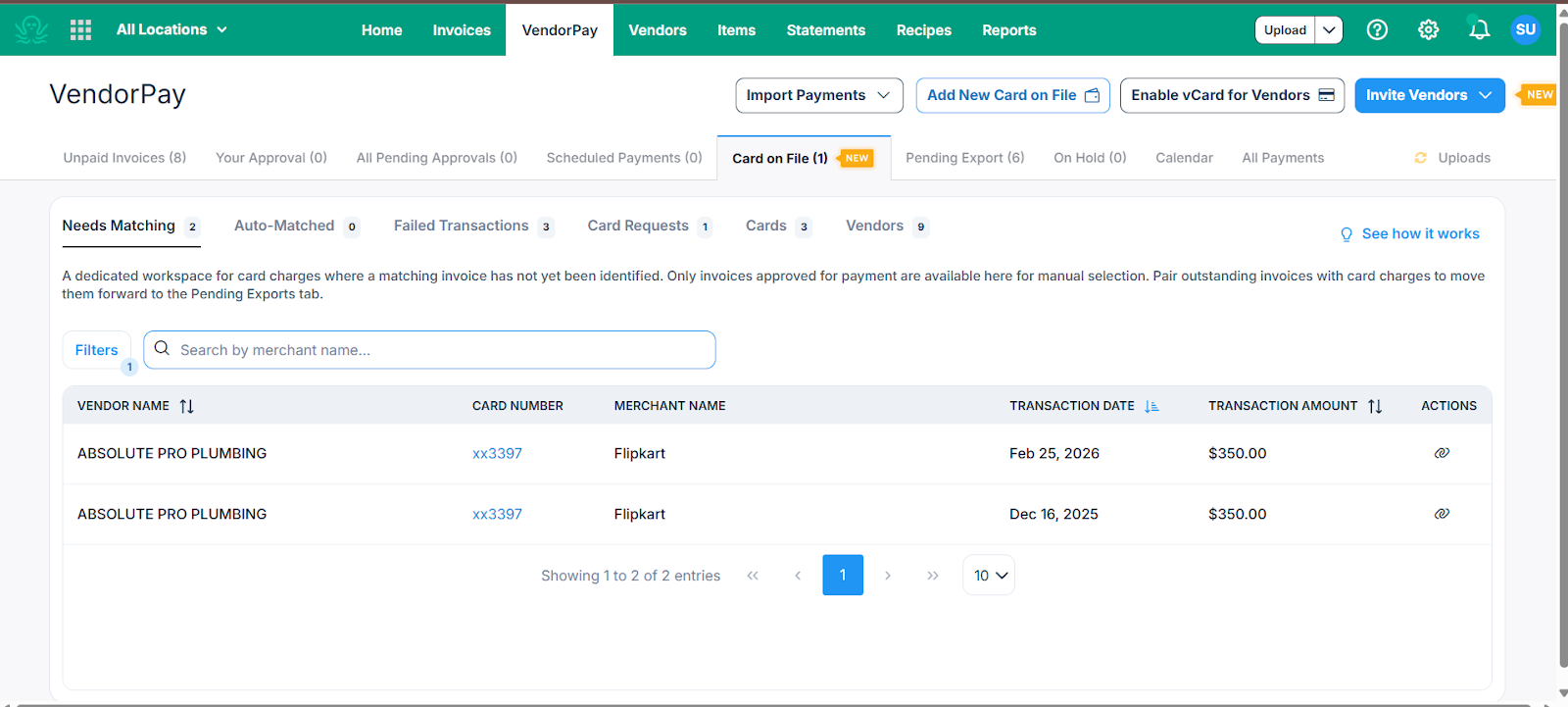
If a matching invoice is unavailable, the transaction stays in the Needs Matching tab. When the corresponding invoice is created and approved, automatch moves the transaction forward. For transactions covering multiple invoices, ensure all relevant invoices are approved before manually matching them in Needs Matching. This tab also lets users create missing invoices directly. Automatically matched invoices require final approval before moving to export, but manually matched invoices skip further review—once users select and confirm the correct invoices, the transaction goes straight to the Pending Export tab, ready for ERP integration.
Auto-Match Tab
Needs Attention Tab
7. Viewing, Editing, and Troubleshooting
The Cards tab is the command center for all Card on File activity. Visibility depends on your location and company access. Use this dashboard to monitor every card's health and status. Key management options include:
Permanently Close Card: Use this for vendors you no longer work with or for cards that have been compromised. Once closed, the card cannot be reopened.
Put Card on Hold: This is a temporary measure that pauses the card's ability to be charged without deleting the card details. It is ideal for resolving billing disputes or pausing subscriptions.
Increase Monthly Limit: If a vendor’s monthly billing exceeds the current card limit, you can request an increase here. Note that any individual card limit is subject to your Total Account Limit.
Recreate Card: If a card is declined during the initial lodging process in a vendor portal, this option allows you to generate a new card number with a different configuration to resolve compatibility issues.
Close Card, Card on Hold, Increase Monthly Limit, Recreate Card - Watch Video *
8. How to Release for Scheduling
If a card transaction fails—for example, due to an expired card, a temporary hold, or a limit issue—the invoice must be handled manually to avoid service interruptions. To resolve this, navigate to the Failed Transactions section and select Release for Scheduling.
By selecting this option, the system updates the payment method for the failed invoice in the Unpaid Invoices queue to the prior method (check/ACH/vCard). This "unlinks" the invoice from the failed Card on File attempt, making it available for processing via ACH, vCard, or Check, ensuring vendors are paid on time through traditional methods if automation fails.
9. Administrative Access to Card Details (View COF Card Credentials)
Ottimate now supports a dedicated permission — View COF Card Credentials — that allows designated users to view and unmask full card details (card number, expiry, CVV) without needing to be the original card creator. This permission is managed at the role level under Vendor Pay settings and is disabled by default for all existing roles.
How It Works
By default, full card credentials (PAN, expiry, CVV) are visible only to the user who created the card and to Account Admins.
With the View COF Card Credentials permission enabled on a role, any user assigned that role can click Unmask Card Info on the Card Details page to reveal full card credentials.
This permission is optional and must be explicitly enabled by an Admin — it is off by default for all existing roles.
The toggle on the Card Details page has been renamed from View Card Details to Unmask Card Info for clarity.
Enabling the Permission
To grant a user access to unmask card credentials:
Navigate to Settings → Roles & Permissions.
Select the role you want to update.
Under the Vendor Pay section, locate View COF Card Credentials.
Toggle it on and save. All users with this role will now be able to unmask card info.
Note: Users who have only Vendor Pay access (without Create Payments or Approve Payments permissions) can view the Cards tab but cannot perform any card actions, such as recreating a card. They may view card details, but cannot unmask card credentials unless the View COF Card Credentials permission is also granted.
10. Understanding Transaction Status Colors in Card on File
Each transaction processed through Card on File (CoF) displays a color-coded status badge on the Cards tab and in the Card Details view. These status indicators give you an at-a-glance view of where a payment stands in the settlement process.
Transaction Status Reference
Status Descriptions in Detail
Pending
A Pending status means Ottimate has already pulled the funds from the client's account and initiated the transfer to the supplier's bank account, but the transaction has not yet fully settled on the banking network. This is a transitional state — the money is in motion but not yet confirmed by the receiving bank.
Funds have left the Ottimate account.
Transfer to the supplier's bank account is in progress.
No action required unless the status remains Pending for an unusually long period — in that case, contact support@ottimate.com.
Completed
A Completed status confirms that the funds have been successfully received in the supplier's bank account and the transaction is fully settled. No further processing is required for this charge.
Full settlement confirmed by the bank.
The corresponding invoice will be moved to Pending Export for ERP reconciliation.
No action required.
Declined
A Declined status indicates that the fund transfer was unsuccessful and no payment was made to the supplier. This can occur for several reasons, including an expired card, a card on hold, or the transaction exceeding the card's monthly spend limit.
No funds were transferred to the supplier.
The associated invoice will require manual intervention.
Use Recreate Card to generate a new card and retry, or use Release for Scheduling to reroute the invoice to ACH, vCard, or Check.
See Section 8 (How to Release for Scheduling) in the Card on File guide for step-by-step instructions.
Frequently Asked Questions (FAQ)
Q: Why is my "Approve" button greyed out in the card request queue? A: This happens when the requested card limit exceeds your available Daily Account Credit Limit. You must either decrease the card's limit or request a credit limit increase for your overall account (see Section 4) before the request can be approved.
Q: Can I use one card for all my locations? A: A card can be created at the Company level (by selecting all locations within that company) or at a particular Location. However, you cannot create one single card for your entire Ottimate account, nor can you create a card that spans different locations across different companies. The system follows a strict hierarchy: Account > Company > Location. Always verify your vendor’s portal requirements first, as many utility and food vendors require "Location Specific" cards.
Q: Why didn't my transaction auto-match even though the invoice is in the system? A: Auto-matching only triggers if the invoice is in the Approved status. If the invoice is still "Pending Approval," the transaction will sit in the Needs Matching tab. Once the invoice is approved, the system will attempt to match it.
Q: What happens if a vendor charges a "Processing Fee" that isn't on the invoice? A: The transaction will move to the Needs Matching tab because the dollar amount does not match the invoice. While you can view the invoices in this tab, you will still need to manually reconcile the transaction by creating a separate invoice for the processing fee. To avoid this, we recommend using the vendors listed in the Card on File section, as they are confirmed acceptors with no processing fees. For other vendors that impose a processing fee, Ottimate will not be liable for the cost.
Q: I can't see the card details for a card my colleague created. Why? A: For security reasons, card numbers and CVVs are only visible to the original creator of the card and Account Admins. If you are neither, you will see the card exists, but you cannot view the sensitive payment credentials.
Q: Do these cards have an expiration date? A: Yes, each card generated through VendorPay includes a standard expiration date, similar to a physical credit card. You can view the month and year of expiration within the Card Details tab after the card is generated.
Q: When does a card’s monthly spend limit reset? A: All card limits reset automatically on the 1st of every month. This reset is based on the calendar month, ensuring your monthly budget is refreshed and ready for new billing cycles.
Q: Who can see the full card number and CVV?
A: Full card credentials are visible to (1) the original card creator and (2) any user whose role has the View COF Card Credentials permission enabled. All other users can see that a card exists, but cannot unmask the sensitive details.
Q: Is the View COF Card Credentials permission enabled for existing roles automatically?
A: No. This permission is disabled by default for all existing roles. An Admin must explicitly enable it for any role that requires it.
Q: Can a user with View COF Card Credentials perform card actions like recreating or closing a card?
A: No. The View COF Card Credentials permission only allows unmasking card info. Card management actions (such as recreating, closing, or putting a card on hold) are governed by separate Create Payments and Approve Payments permissions.
Q: How long can a transaction stay in Pending status?
A: Most transactions settle within 1–2 business days. If a transaction remains pending beyond that window, reach out to support@ottimate.com for investigation.
Q: If a transaction is declined, does the invoice go back to unpaid?
A: Yes. A declined transaction means the invoice was not paid. You must use Release for Scheduling to move the invoice back to the Unpaid Invoices queue and process it via an alternative payment method (ACH, vCard, or Check).
Q: Where do I see these status badges?
A: Status badges are visible on each card row in the Cards tab and within the individual Card Details view under the transaction history table.
Was this article helpful?
That’s Great!
Thank you for your feedback
Sorry! We couldn't be helpful
Thank you for your feedback
Feedback sent
We appreciate your effort and will try to fix the article