Overview
The Invoice History Revamp introduces a more detailed and user-friendly audit trail for invoices.
Previously, invoice history provided limited visibility into changes made to invoices. While users could see that an invoice was modified, it was often difficult to determine exactly what changed, who made the change, and when it occurred.
The new experience improves transparency by providing detailed change tracking, enhanced search and filtering capabilities and downloadable audit logs.
This enhancement helps AP teams, auditors and administrators quickly investigate invoice activity without relying on support or engineering teams.
Availability
The Invoice History Revamp is available in the new invoice experience (UI).
The feature is enabled for all customers.
The following capabilities are available only in new UI:
Search invoice history
Filter invoice history
Download audit logs
Expandable event details
Color-coded event indicators
Legacy invoice experience (UI) continues to support invoice history tracking but does not include the enhancements listed above.
Permissions
Downloading audit logs requires the following permission:
Download Invoice History
Users without this permission can still view invoice history but cannot export it.
How It Works
Search and Filters
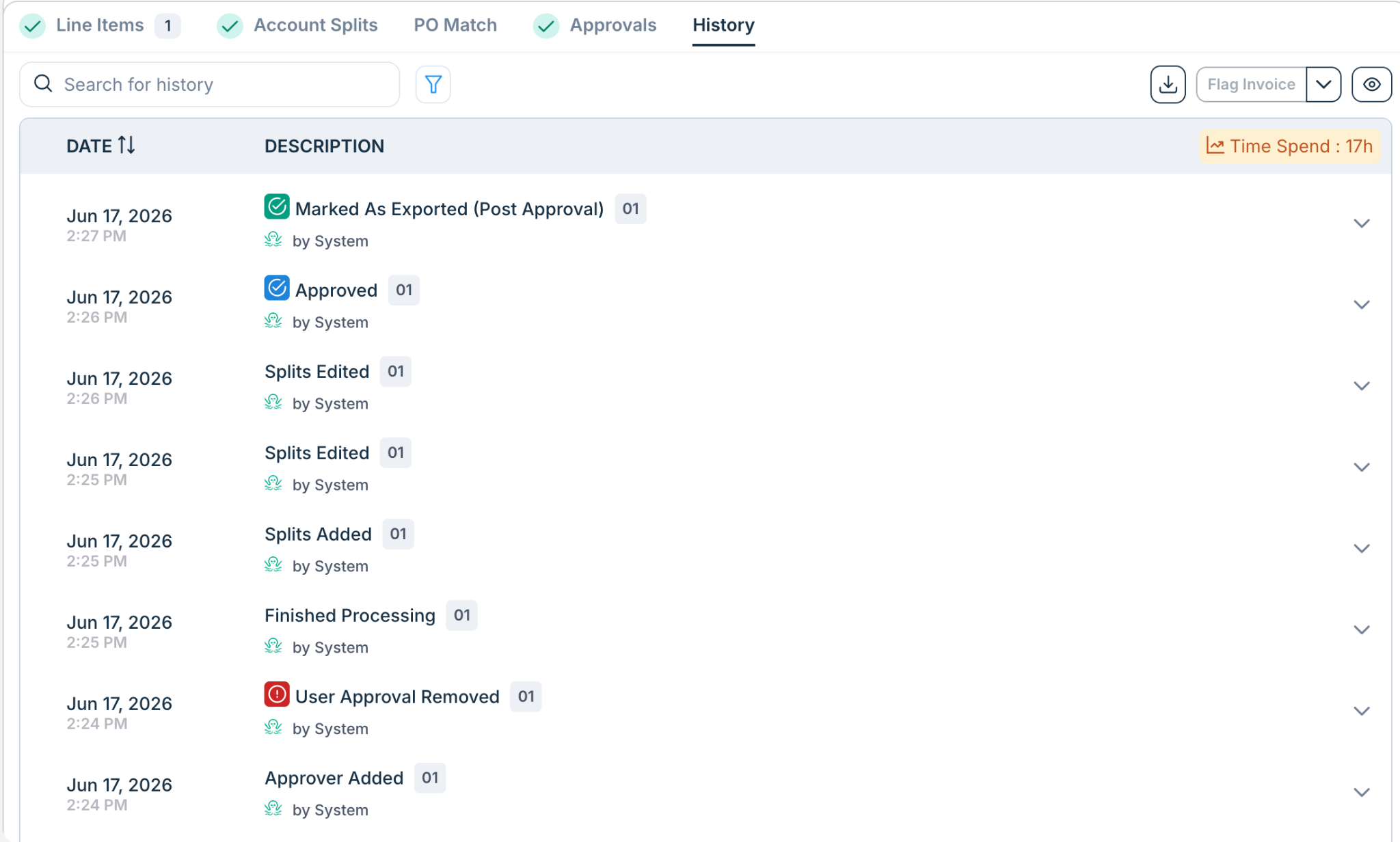
Users can search invoice history to quickly locate specific events.
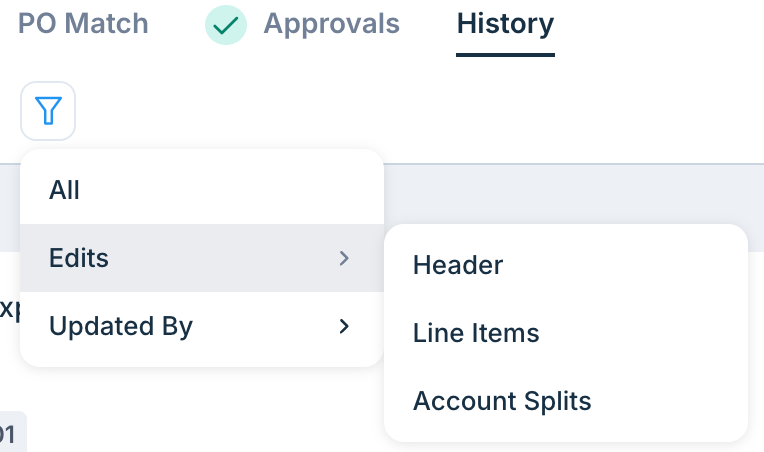
History records can also be filtered by area of change, including:
Header Changes
Line Item Changes
Account Split Changes
These tools make it easier to investigate invoices with extensive activity histories.
Detailed Change Tracking
The Invoice History Revamp provides greater visibility into invoice edits.
For supported events, users can view:
What changed
Previous value
New value
Who made the change
When the change occurred
Examples include:
Vendor changes
Invoice amount updates
Tax updates
GL/ Department/ Any other dimension changes
Account split modifications
Line Item and Account Split Visibility
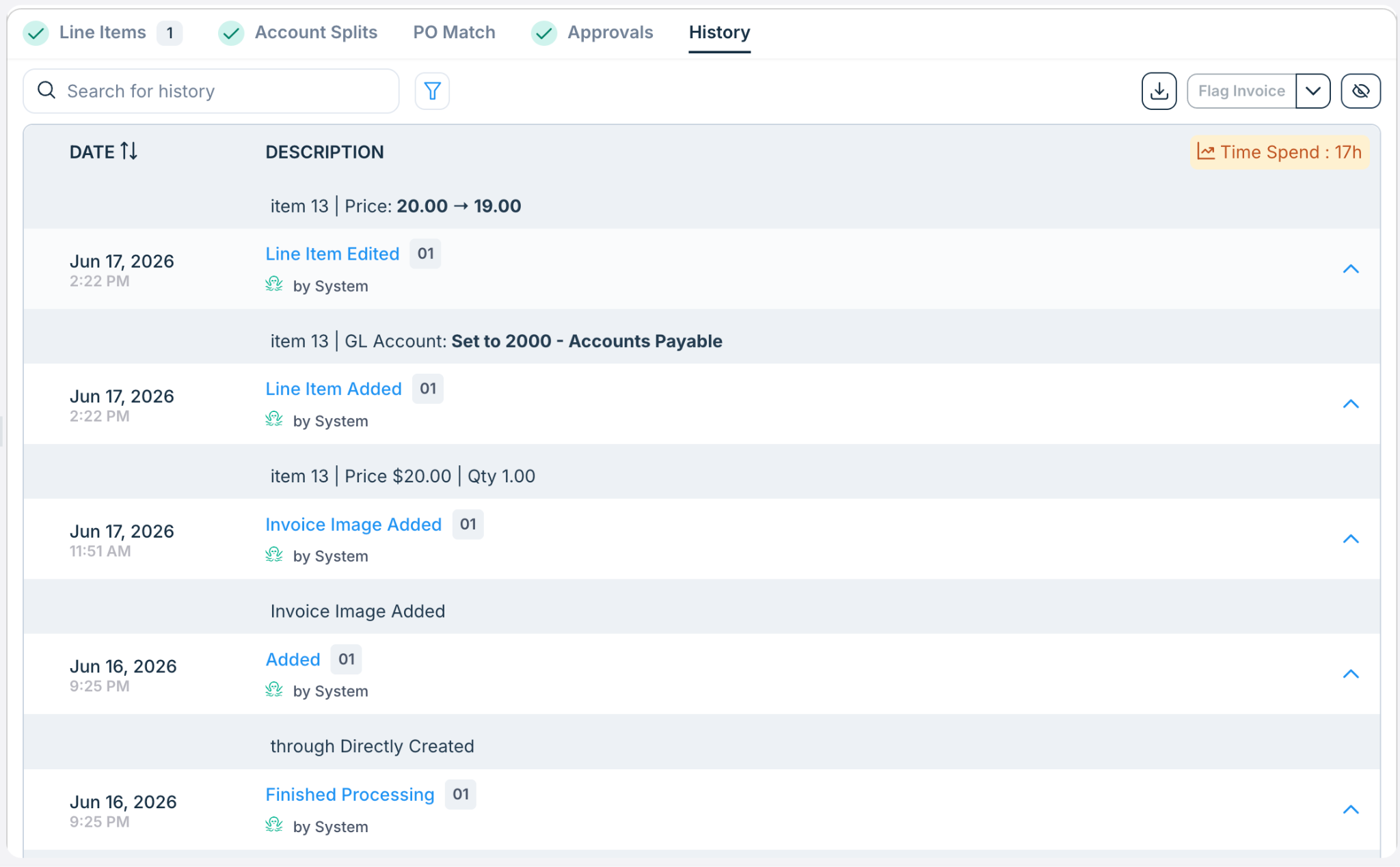
Changes made to line items and account splits are now easier to understand.
Examples include:
Line item additions and deletions
GL / Department updates
Account split edits and imports
System vs User Actions
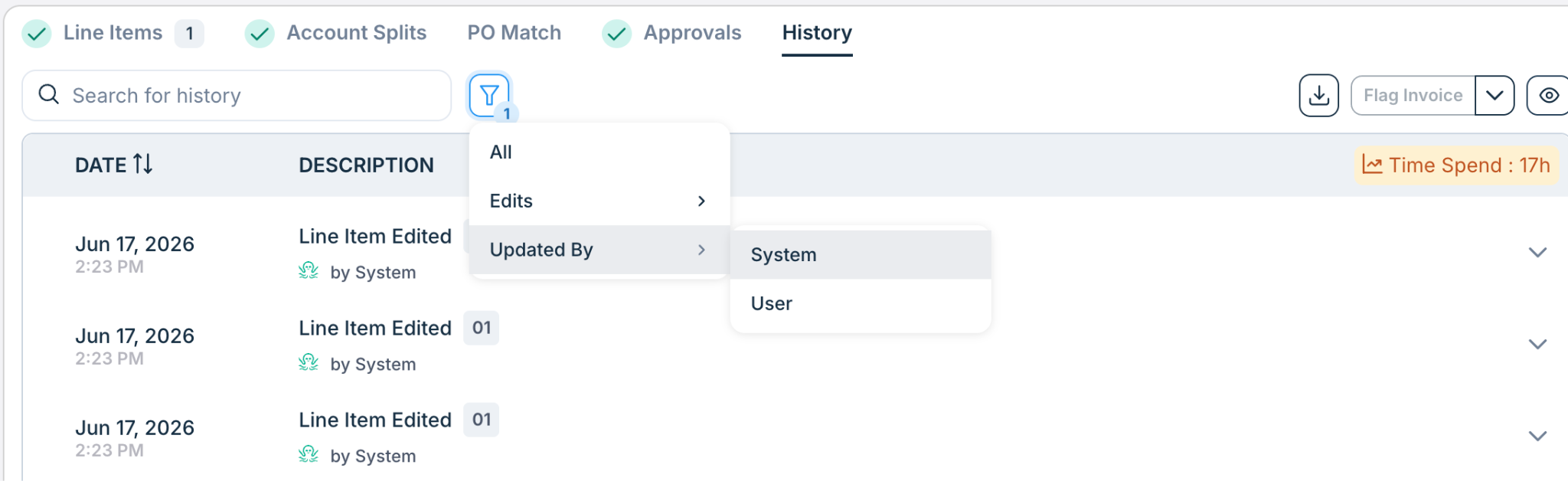
Invoice history clearly identifies whether an action was performed by:
A user
The system
This helps users understand whether changes were manually performed or generated through automated workflows and processing.
Post-Approval and Post-Export Changes
Certain users may have permissions that allow edits after an invoice has been approved or exported.
When a change occurs after one of these lifecycle milestones, the history entry will be labeled accordingly.
Examples:
Post-Approval
Post-Export
These indicators help auditors and administrators quickly identify modifications made after key workflow events.
Visual Event Indicators
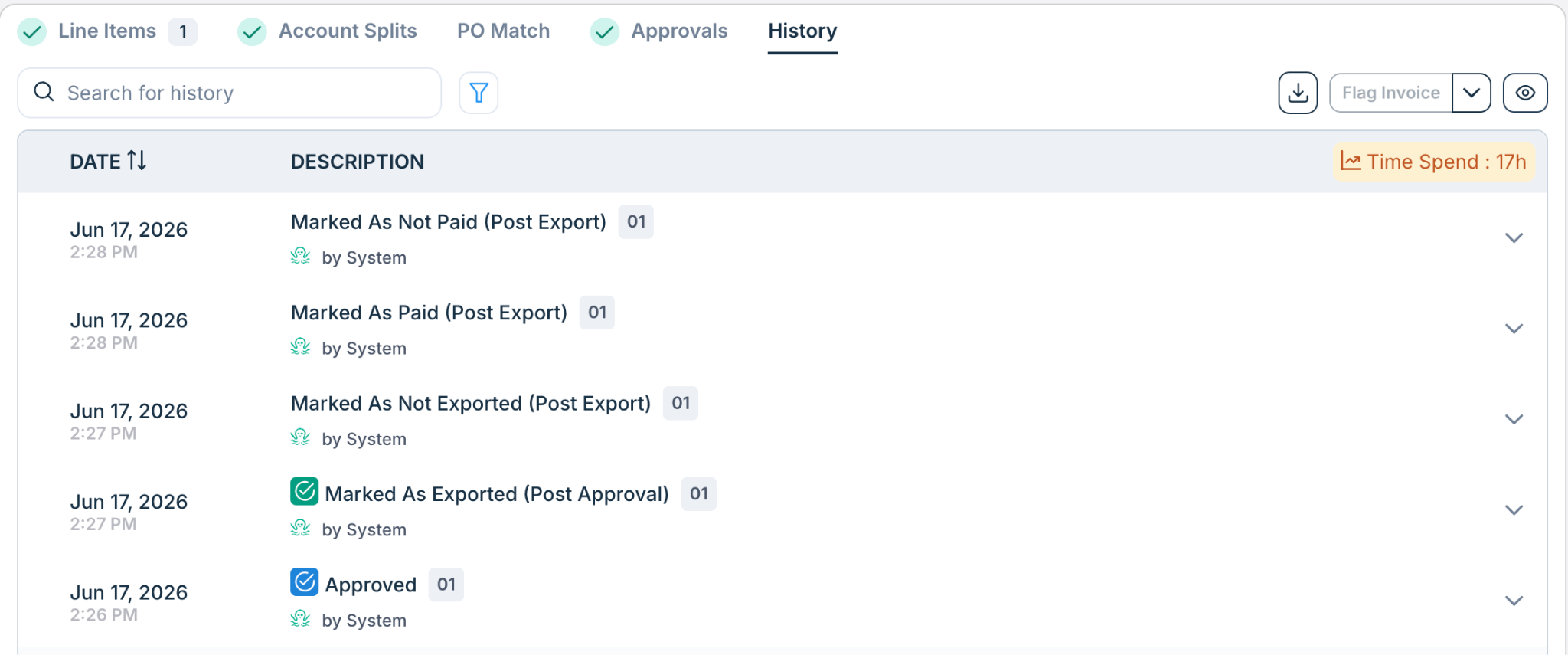
Color-coded event indicators help users quickly identify different categories of activity.
Examples include:
Approval-related events
Export-related events
Flagged events
Removal or deletion events
This improves readability when reviewing invoices with extensive histories.
Download Audit Logs
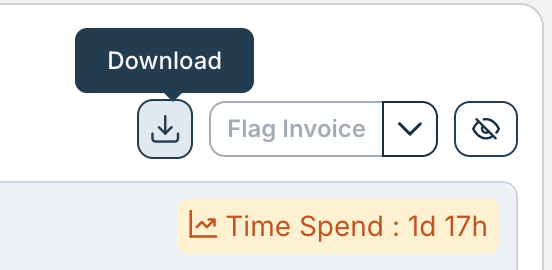
Users with the Download Invoice History permission can export invoice history records for audit and reporting purposes.
Downloaded logs include historical and newly created invoice history records.
This is particularly useful for:
External audits
Internal compliance reviews
Customer investigations
FAQs
What problem does this feature solve?
The Invoice History Revamp provides greater transparency into invoice activity by helping users answer questions such as:
Who changed this invoice?
What changed?
When did the change occur?
Was the change made before or after approval or export?
Can I see historical invoice history?
Yes.
Historical invoice logs have been migrated into the new experience and are available through the History tab.
Can I search invoice history?
Yes.
Users can search invoice history and use filters to narrow results to specific types of activity.
Can I download invoice history?
Yes, provided you have the Download Invoice History permission.
Why do some entries show "Post-Approval" or "Post-Export"?
These labels indicate that the change occurred after the invoice had already been approved or exported.
This helps users quickly identify changes made after important workflow milestones.
Can I see changes made by the system?
Yes.
Invoice history identifies whether an action was performed by a user or by the system.
Are line item and account split changes tracked?
Yes.
The Invoice History Revamp includes enhanced visibility into line item changes and account split modifications, making these activities easier to review and audit.
What does Time Spent represent?
Time Spent is the elapsed time from when an invoice enters Ottimate until it's exported, and keeps counting until then. Treat it as a high-level estimate.
Is the Invoice History experience the same in Legacy UI and new UI?
No.
The new invoice experience (UI) includes several enhancements that are not available in Legacy UI, including:
Search
Filters
Download audit logs
Expandable event details
Color-coded event indicators
All other invoice history functionality remains available in both experiences.
Additional Information
For further assistance, contact Ottimate Support by emailing Support@ottimate.com or clicking here.
Was this article helpful?
That’s Great!
Thank you for your feedback
Sorry! We couldn't be helpful
Thank you for your feedback
Feedback sent
We appreciate your effort and will try to fix the article